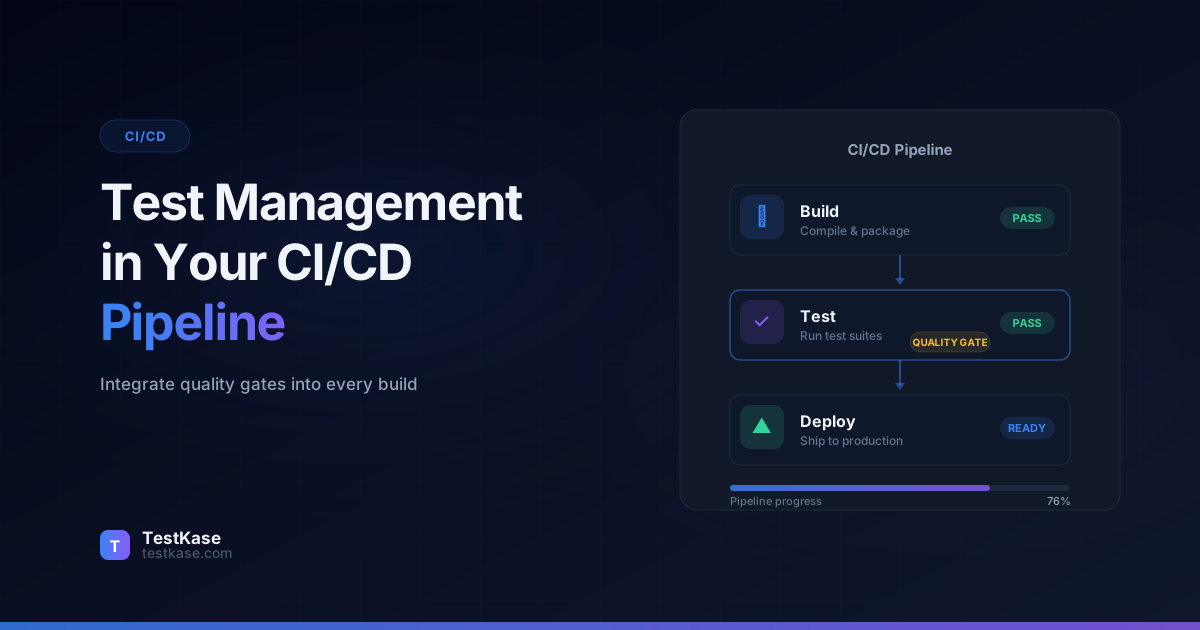
How to Integrate Test Management into Your CI/CD Pipeline

How to Integrate Test Management into Your CI/CD Pipeline
Your team deploys to production three times a week. Your CI pipeline runs unit tests, linters, and a basic smoke suite. But here's what happens after deployment: the QA lead opens a spreadsheet, manually checks off which test cases were run, copies results into a status report, and emails it to the engineering manager. The automated part of your pipeline has a very manual last mile.
This disconnect — fast pipelines, slow test management — is shockingly common. A 2024 GitLab DevSecOps survey found that 67% of teams have CI/CD pipelines, but only 23% have their test management tooling integrated into those pipelines. The result? Developers don't see test results where they work. QA doesn't get notified when builds break. Managers rely on stale dashboards that were last updated two days ago.
Integrating test management into your CI/CD pipeline closes that gap. It means test results flow automatically from your pipeline into your test management platform, quality gates block bad builds before they reach staging, and everyone — developers, testers, and managers — sees the same real-time quality picture.
This guide walks you through the architectural patterns, implementation details, and real-world lessons you need to make the integration work in practice — not just in theory.
Why Your CI/CD Pipeline Needs Test Management
CI/CD without test management is like a factory with an assembly line but no quality inspection reports. You're producing output fast, but you have limited visibility into whether that output meets your standards.
The visibility problem
In a Tricentis survey, 58% of engineering leaders said they lack confidence in their release quality — not because testing isn't happening, but because test results are scattered across tools, terminals, and email threads. Integration solves this by centralizing results.
Here's what you gain by connecting the two:
- Automatic result capture — Test outcomes flow from CI into your test management tool without manual entry
- Quality gates with teeth — Block deployments when critical test cases fail, not just when the build breaks
- Traceability — Link test results to specific commits, builds, and releases for audit trails
- Trend analysis — Track pass/fail rates across builds to spot regressions early
- Team alignment — Developers see test failures in their PR checks; QA sees results in their dashboard
Without integration, these capabilities require manual effort — and manual effort doesn't scale with deployment frequency.
The Real Cost of Disconnected Testing
Consider a concrete example. A team running 10 releases per month with 400 test cases per release spends roughly 6–8 hours per cycle on manual result entry, status updates, and report generation. That's 60–80 hours per month — nearly half an engineer's time — spent on data transfer that should be automated.
Beyond time, disconnected testing introduces accuracy risks. Manual transcription of test results has a documented error rate of 2–5%, according to ISTQB research. At 400 test cases per cycle, that's 8–20 results that could be misrecorded. When those errors affect release decisions, the downstream cost multiplies.
There's also the feedback delay. When test results take hours to reach the team, developers have already moved on to new work. Context switching to fix a regression that was caught six hours ago is dramatically more expensive than fixing one caught in real time during the pipeline run.
The Maturity Model: Where Does Your Team Stand?
Most teams fall into one of four maturity levels for CI/CD test management integration:
| Level | Description | Characteristics | |---|---|---| | Level 0: Manual | Test results recorded manually in spreadsheets or email | No automation, high error rate, slow feedback | | Level 1: Basic CI | Tests run in CI, results visible in pipeline logs | Automated execution but no centralized tracking | | Level 2: Integrated | Test results automatically pushed to test management tool | Centralized results, basic traceability | | Level 3: Orchestrated | Quality gates, priority-based blocking, trend analysis, feedback loops | Full automation with intelligent decision-making |
Most teams reading this guide are at Level 0 or 1 and want to reach Level 2 or 3. The good news: moving from Level 1 to Level 2 typically takes 1-2 days of setup. Moving from Level 2 to Level 3 takes 2-4 weeks of refinement.
Integration Patterns: How Tools Talk to Each Other
There are three primary ways to connect a test management tool to your CI/CD pipeline. The right choice depends on your tooling, team size, and level of customization needed.
Pattern 1: Test Reporters
Most test frameworks — Jest, Pytest, JUnit, Playwright, Cypress — support custom reporters. A reporter is a plugin that captures test results as they execute and sends them somewhere. This is the most common integration pattern.
# Example: Playwright config with a custom reporter
import { defineConfig } from '@playwright/test';

export default defineConfig({
  reporter: [
    ['html'],
    ['junit', { outputFile: 'results/junit-report.xml' }],
    ['./custom-reporter.ts']  // Sends results to your test management API
  ],
});
The reporter runs alongside your tests in the CI pipeline, collects pass/fail results for each test case, and posts them to your test management tool's API. No separate step needed — it happens during test execution.
Here's what a custom reporter implementation looks like in practice:
// custom-reporter.ts
import type { Reporter, TestCase, TestResult } from '@playwright/test/reporter';

class TestManagementReporter implements Reporter {
  private results: Array<{ testId: string; status: string; duration: number }> = [];

  onTestEnd(test: TestCase, result: TestResult) {
    this.results.push({
      testId: test.annotations.find(a => a.type === 'testcase')?.description ?? test.title,
      status: result.status,
      duration: result.duration,
    });
  }

  async onEnd() {
    await fetch('https://api.your-test-tool.com/v1/results', {
      method: 'POST',
      headers: {
        'Authorization': `Bearer ${process.env.TEST_MGMT_TOKEN}`,
        'Content-Type': 'application/json',
      },
      body: JSON.stringify({
        runId: process.env.CI_RUN_ID,
        results: this.results,
      }),
    });
  }
}

export default TestManagementReporter;
This approach gives you real-time streaming of results. As each test finishes, the result is captured. When the entire suite completes, all results are batched and sent to the API.
Pattern 2: Post-Execution API Calls
If a custom reporter isn't available or practical, you can add a pipeline step that parses test output and pushes results via API after execution completes.
# GitHub Actions example
- name: Run tests
  run: npm test -- --reporter junit --output results.xml

- name: Push results to test management
  run: |
    curl -X POST https://api.your-test-tool.com/v1/results \
      -H "Authorization: Bearer ${{ secrets.TEST_MGMT_TOKEN }}" \
      -H "Content-Type: application/json" \
      -d @results.json
This approach works with any CI system and any test framework. The tradeoff is a slight delay — results aren't available until the entire test run finishes, rather than streaming in real-time.
A more robust implementation includes error handling and retry logic:
- name: Push results to test management
  if: always()
  run: |
    MAX_RETRIES=3
    RETRY_COUNT=0
    until [ $RETRY_COUNT -ge $MAX_RETRIES ]; do
      HTTP_CODE=$(curl -s -o /dev/null -w "%{http_code}" \
        -X POST https://api.your-test-tool.com/v1/results \
        -H "Authorization: Bearer ${{ secrets.TEST_MGMT_TOKEN }}" \
        -H "Content-Type: application/json" \
        -d @results.json)
      if [ "$HTTP_CODE" -eq 200 ] || [ "$HTTP_CODE" -eq 201 ]; then
        echo "Results pushed successfully"
        break
      fi
      RETRY_COUNT=$((RETRY_COUNT + 1))
      echo "Attempt $RETRY_COUNT failed with HTTP $HTTP_CODE. Retrying..."
      sleep 5
    done
Pattern 3: Webhooks and Event-Driven Integration
For bidirectional communication, webhooks let your test management tool trigger pipeline actions and your pipeline notify the test management tool of events.
This pattern is useful when you want your test management platform to initiate test runs — for example, when a QA lead creates a new test cycle and wants to trigger the corresponding automated suite in CI. The webhook fires from the test management tool, hits your CI system's API, and kicks off the pipeline.
Going the other direction, your pipeline can send webhook events to the test management tool at key milestones: build started, tests started, tests completed, deployment succeeded. This enables real-time dashboard updates without polling.
// Example webhook payload from CI to test management
{
  "event": "test_run_completed",
  "pipeline_id": "gh-actions-12345",
  "commit_sha": "a1b2c3d4",
  "branch": "feature/user-auth",
  "results": {
    "total": 342,
    "passed": 330,
    "failed": 8,
    "skipped": 4
  },
  "environment": "staging",
  "timestamp": "2026-03-22T14:30:00Z"
}
Choosing the Right Pattern
The best pattern depends on your team's needs and constraints:
                    Start Here
                        │
                        ▼
          ┌─────────────────────────┐
          │ Does your test framework │
          │ support custom reporters?│
          └───────┬────────┬────────┘
                  │        │
                Yes        No
                  │        │
                  ▼        ▼
          ┌──────────┐  ┌──────────────────┐
          │ Pattern 1│  │   Pattern 2:     │
          │ Reporter │  │ Post-execution   │
          │          │  │ API calls        │
          └──────────┘  └──────────────────┘
                  │
                  ▼
          ┌──────────────────────────┐
          │ Do you need bidirectional│
          │ triggers (TM → CI)?     │
          └───────┬────────┬────────┘
                  │        │
                Yes        No
                  │        │
                  ▼        ▼
          ┌──────────┐  ┌──────────────────┐
          │Add Pattern│  │ Pattern 1 alone  │
          │3: Webhooks│  │ is sufficient    │
          └──────────┘  └──────────────────┘
Most teams start with a reporter or post-execution API, then add webhooks as their needs mature.
Setting Up Quality Gates That Actually Work
Quality gates are the most valuable outcome of CI/CD test management integration. A quality gate is a checkpoint in your pipeline that evaluates test results and decides whether the build can proceed.
But most quality gates are too blunt. "All tests must pass" sounds good until a single flaky E2E test blocks a critical hotfix at 11 PM. Effective quality gates are nuanced.
Tiered Quality Gates
Design your gates around test priority and type:
# Pseudocode for a tiered quality gate
quality_gates:
  - gate: "Unit Tests"
    rule: "100% pass rate required"
    blocks: "merge to main"

  - gate: "Integration Tests"
    rule: "95% pass rate, zero P1 failures"
    blocks: "deploy to staging"

  - gate: "E2E Smoke Suite"
    rule: "All critical path tests pass"
    blocks: "deploy to production"

  - gate: "Full Regression"
    rule: "90% pass rate, zero P1/P2 failures"
    blocks: "release sign-off"
Don't gate on flaky tests
Before enforcing quality gates, fix or quarantine your flaky tests. A gate that blocks builds on intermittent failures will be overridden so often that the team stops trusting it — and eventually disables it. Quarantine flaky tests into a separate, non-blocking suite while you fix them.
Linking Gates to Test Case Priority
Your test management tool likely has priority levels for test cases — Critical, High, Medium, Low. Use these in your gates:
- Critical test failure — Block the pipeline. Page the on-call. This is a showstopper.
- High test failure — Block the pipeline. Notify the team. Fix before proceeding.
- Medium test failure — Warn but don't block. Create a ticket for the next sprint.
- Low test failure — Log it. Review in weekly triage.
This requires your pipeline to understand test priorities, which is exactly why the test management integration matters — the priority metadata lives in your test management tool and needs to flow into the pipeline's decision logic.
Implementing Priority-Based Gates in Practice
Here is how a priority-aware quality gate works end to end:
- Your test management tool stores each test case with a priority field (P1/P2/P3/P4).
- Your reporter maps automated test IDs to test management case IDs, pulling down priority metadata before or during execution.
- After tests complete, the pipeline evaluates results grouped by priority.
- The gate logic checks: "Are there any P1 failures? Any P2 failures above threshold?" and makes the proceed/block decision.
// quality-gate.ts — Evaluate results against gate rules
interface TestResult {
  caseId: string;
  priority: 'P1' | 'P2' | 'P3' | 'P4';
  status: 'passed' | 'failed' | 'skipped';
}

function evaluateGate(results: TestResult[]): { pass: boolean; reason: string } {
  const p1Failures = results.filter(r => r.priority === 'P1' && r.status === 'failed');
  const p2Failures = results.filter(r => r.priority === 'P2' && r.status === 'failed');
  const totalTests = results.filter(r => r.status !== 'skipped').length;
  const passedTests = results.filter(r => r.status === 'passed').length;
  const passRate = (passedTests / totalTests) * 100;

  if (p1Failures.length > 0) {
    return { pass: false, reason: `${p1Failures.length} critical (P1) test(s) failed` };
  }
  if (p2Failures.length > 2) {
    return { pass: false, reason: `${p2Failures.length} high-priority (P2) tests failed (max 2)` };
  }
  if (passRate < 90) {
    return { pass: false, reason: `Pass rate ${passRate.toFixed(1)}% below 90% threshold` };
  }
  return { pass: true, reason: `Gate passed: ${passRate.toFixed(1)}% pass rate, 0 P1 failures` };
}
Quality Gate Evolution: Start Simple, Add Nuance
Don't try to build the perfect quality gate on day one. Start simple and evolve:
Week 1: Binary gate — all tests must pass to merge.
Week 2-3: Add if: always() to reporting steps so you see results even on failure. Identify flaky tests that block builds.
Month 1: Quarantine flaky tests. Introduce priority-based gates for P1/P2 only.
Month 2: Add trend analysis — flag builds where the pass rate drops more than 5% from the previous build.
Month 3: Add environment-aware gates — stricter criteria for production deploys than staging deploys.
Each step adds sophistication based on real experience with your codebase and test suite, rather than theoretical ideal gates that don't match your reality.
Pipeline Stages for Testing: A Reference Architecture
A well-structured pipeline separates testing into stages, each with a specific purpose and scope.
┌─────────────┐    ┌─────────────┐    ┌──────────────┐    ┌────────────┐
│   Build &   │───>│    Unit &   │───>│  Integration │───>│   E2E &    │
│    Lint     │    │   Static    │    │    Tests     │    │   Smoke    │
│             │    │  Analysis   │    │              │    │   Tests    │
└─────────────┘    └─────────────┘    └──────────────┘    └────────────┘
      │                  │                   │                   │
      │                  │                   │                   │
      ▼                  ▼                   ▼                   ▼
   Gate: Build       Gate: Code          Gate: API           Gate: User
   compiles          quality meets       contracts hold      journeys work
                     standards
Each stage reports results to your test management tool. Each gate evaluates the results and decides whether to proceed. If any gate fails, the pipeline stops and the team is notified with specific failure details — not just "build failed."
Stage Timing and Feedback Loops
The order of stages matters for fast feedback. Unit tests should run first because they are fastest (typically under 2 minutes for a well-maintained suite) and catch the most common regressions. If unit tests fail, there's no point waiting 15 minutes for integration tests.
Here's a real-world timing breakdown from a mid-size SaaS application:
| Stage | Test Count | Typical Duration | Failure Rate | |---|---|---|---| | Unit tests | 1,200 | 90 seconds | 2–3% of builds | | Static analysis | N/A | 45 seconds | 5–8% of builds | | Integration tests | 180 | 4 minutes | 4–6% of builds | | E2E smoke suite | 45 | 8 minutes | 8–12% of builds | | Full regression | 320 | 25 minutes | 15–20% of builds |
Notice that the full regression suite has the highest failure rate. This is why it typically runs on a schedule (nightly) or before release, not on every commit. The smoke suite catches the critical issues quickly, and the full regression catches the rest before release.
Example: GitHub Actions Pipeline with Test Reporting
name: Test Pipeline
on:
  pull_request:
    branches: [main]

jobs:
  unit-tests:
    runs-on: ubuntu-latest
    steps:
      - uses: actions/checkout@v4
      - uses: actions/setup-node@v4
        with:
          node-version: '20'
      - run: npm ci
      - run: npm test -- --coverage
      - name: Report results
        if: always()
        run: npx testkase-reporter --suite unit --run-id ${{ github.run_id }}

  integration-tests:
    needs: unit-tests
    runs-on: ubuntu-latest
    steps:
      - uses: actions/checkout@v4
      - run: npm ci
      - run: npm run test:integration
      - name: Report results
        if: always()
        run: npx testkase-reporter --suite integration --run-id ${{ github.run_id }}

  e2e-tests:
    needs: integration-tests
    runs-on: ubuntu-latest
    steps:
      - uses: actions/checkout@v4
      - run: npm ci
      - run: npx playwright install --with-deps
      - run: npx playwright test
      - name: Report results
        if: always()
        run: npx testkase-reporter --suite e2e --run-id ${{ github.run_id }}
The if: always() condition ensures results are reported even when tests fail — otherwise you'd only see results for successful runs, which defeats the purpose.
Extending to GitLab CI and Jenkins
The same principles apply across CI platforms. Here's how the pattern looks in GitLab CI:
# .gitlab-ci.yml
stages:
  - test-unit
  - test-integration
  - test-e2e

unit_tests:
  stage: test-unit
  script:
    - npm ci
    - npm test -- --coverage
  after_script:
    - npx testkase-reporter --suite unit --run-id $CI_PIPELINE_ID
  artifacts:
    when: always
    reports:
      junit: results/junit-report.xml

integration_tests:
  stage: test-integration
  script:
    - npm ci
    - npm run test:integration
  after_script:
    - npx testkase-reporter --suite integration --run-id $CI_PIPELINE_ID
For Jenkins, use post-build actions or a shared library:
// Jenkinsfile
pipeline {
    agent any
    stages {
        stage('Unit Tests') {
            steps {
                sh 'npm ci && npm test -- --coverage'
            }
            post {
                always {
                    sh "npx testkase-reporter --suite unit --run-id ${BUILD_NUMBER}"
                    junit 'results/junit-report.xml'
                }
            }
        }
    }
}
Azure DevOps Integration
For teams on Azure DevOps, the pattern uses built-in tasks:
# azure-pipelines.yml
trigger:
  branches:
    include: [main]

pool:
  vmImage: 'ubuntu-latest'

steps:
  - task: NodeTool@0
    inputs:
      versionSpec: '20.x'

  - script: npm ci
    displayName: 'Install dependencies'

  - script: npm test -- --reporter junit --outputFile=results/junit.xml
    displayName: 'Run unit tests'
    continueOnError: true

  - task: PublishTestResults@2
    inputs:
      testResultsFormat: 'JUnit'
      testResultsFiles: 'results/junit.xml'
      mergeTestResults: true
    condition: always()

  - script: npx testkase-reporter --suite unit --run-id $(Build.BuildId)
    displayName: 'Report to TestKase'
    condition: always()
The condition: always() in Azure DevOps is equivalent to if: always() in GitHub Actions — ensuring results are reported regardless of test outcome.
Mapping Automated Tests to Test Cases
One of the most overlooked aspects of CI/CD test management integration is the mapping between automated test IDs in your code and test case IDs in your management tool. Without this mapping, results are just logs. With it, you have full traceability.
Annotation-Based Mapping
The cleanest approach is annotating your test code with test management IDs:
// Playwright example with test case annotations
import { test } from '@playwright/test';

test('user login with valid credentials @TC-1042', async ({ page }) => {
  // test implementation
});

test('user login with expired password @TC-1043', async ({ page }) => {
  // test implementation
});
Your reporter parses the @TC-XXXX annotation and uses it to map the result to the correct test case in your management tool. This approach keeps the mapping visible and version-controlled alongside the test code.
External Mapping Files
For teams that prefer not to modify test titles, an external mapping file works:
{
  "mappings": [
    { "testTitle": "user login with valid credentials", "caseId": "TC-1042" },
    { "testTitle": "user login with expired password", "caseId": "TC-1043" },
    { "testTitle": "checkout flow completes successfully", "caseId": "TC-2001" }
  ]
}
The tradeoff is that this file needs to stay in sync with your test suite, which adds a maintenance burden. Annotation-based mapping is generally more reliable.
Auto-Discovery Mapping
A third approach is automatic mapping based on naming conventions. If your test management tool uses a structured naming scheme and your test code follows the same scheme, the reporter can map them automatically:
// Test management: "Login > Valid Credentials > Standard User"
// Automation:
test.describe('Login', () => {
  test.describe('Valid Credentials', () => {
    test('Standard User', async ({ page }) => {
      // This maps automatically to "Login > Valid Credentials > Standard User"
    });
  });
});
This approach works well when both sides follow strict naming conventions, but it breaks when names drift. Use it as a supplement to annotation-based mapping, not a replacement.
Managing Unmapped Tests
In any real test suite, some automated tests won't map to test management cases — utility tests, setup verification, performance benchmarks. Handle these explicitly:
// Explicitly mark tests that should not be mapped
test('database connection is healthy @no-map', async () => {
  // Infrastructure check, not a functional test case
});
Your reporter should track unmapped tests and surface them in a report. A high unmapped percentage (>20%) suggests that either the test management tool is missing cases or the automation suite has drifted from the test plan.
Common Mistakes in CI/CD Test Management Integration
Even well-intentioned integrations go wrong. Watch for these pitfalls:
-
Treating test results as pass/fail only — A passed test with a 30-second runtime that used to take 2 seconds is a warning sign. Capture timing data, not just outcomes. Performance degradation caught in CI is far cheaper to fix than performance degradation caught in production.
-
Not handling partial failures — Your pipeline should handle scenarios where the test runner crashes mid-execution. If 200 tests were supposed to run but only 150 results were reported, that's a gate failure — not a pass with 100% success.
-
Mapping tests incorrectly — Every automated test in CI needs a corresponding test case in your test management tool. Without this mapping, results are just logs. With it, you have traceability from requirement to test case to execution to build.
-
Ignoring environment context — A test that passes on Chrome and fails on Firefox is valuable information, but only if the result includes which browser was used. Include environment metadata — OS, browser, node version, deployment target — in every result submission.
-
Over-notifying — If every test failure sends a Slack alert, your team will mute the channel within a week. Reserve notifications for gate failures and critical test breakages. Use dashboards for routine monitoring.
-
Skipping the authentication token rotation — CI pipelines use API tokens to push results to your test management tool. These tokens should be rotated regularly and stored in your CI system's secret management, not hardcoded in pipeline configs.
-
Not versioning your integration scripts — The reporter configuration, quality gate logic, and mapping files are all code. Treat them with the same version control rigor as your application code. When a pipeline change breaks result reporting, you need to know what changed and when.
-
Building the integration but not maintaining it — Integration requires ongoing maintenance. Test frameworks update their reporter APIs. Test management tools update their REST APIs. API rate limits change. A working integration in January can silently break by March if nobody monitors it.
Monitoring and Maintaining Your Integration
Setting up the integration is just the beginning. You need to monitor it continuously to ensure results keep flowing correctly.
Health Checks to Implement
- Result count validation — After each pipeline run, verify that the number of results reported to your test management tool matches the number of tests executed. A mismatch indicates dropped results.
- Latency monitoring — Track how long it takes for results to appear in your dashboard after test completion. If latency creeps up, investigate API rate limits or network issues.
- Token expiry alerts — Set up notifications before API tokens expire. An expired token means silent failures — your pipeline completes but results never reach your test management tool.
Building a Health Check Script
Here's a practical health check that runs after each pipeline:
#!/bin/bash
# integration-health-check.sh

# Count tests executed
EXECUTED=$(grep -c '<testcase' results/junit-report.xml)

# Count results reported to test management
REPORTED=$(curl -s -H "Authorization: Bearer $TESTKASE_API_KEY" \
  "https://api.testkase.com/v1/runs/$RUN_ID/results" | jq '.total')

# Compare
if [ "$EXECUTED" -ne "$REPORTED" ]; then
  echo "WARNING: Executed $EXECUTED tests but only $REPORTED reported to TestKase"
  echo "Missing results: $((EXECUTED - REPORTED))"
  # Send alert to monitoring system
  curl -X POST "$SLACK_WEBHOOK" -d "{\"text\":\"Test reporting gap: $EXECUTED executed, $REPORTED reported for run $RUN_ID\"}"
  exit 1
fi

echo "Health check passed: $EXECUTED tests executed and reported"
This script catches the most common integration failure: results lost in transit due to API errors, rate limits, or authentication issues.
Dashboard Best Practices
Your test management dashboard should answer three questions at a glance:
- What is the current quality state? — Overall pass rate, critical failures, and trend direction (improving or degrading).
- What broke recently? — New failures since the last successful build, with links to the failing tests and commit that introduced them.
- Are we ready to release? — Aggregate quality gate status across all pipeline stages, with clear pass/fail indicators per stage.
Avoid cluttering dashboards with raw data. QA leads need summaries; developers need failure details. Consider role-based dashboard views that surface the right information for each audience.
Advanced Monitoring: Trend Detection
Beyond basic health checks, monitor for trends that indicate degradation:
- Increasing test duration — If the average test duration increases by more than 20% over a week, investigate. It could indicate application performance regression, infrastructure issues, or test suite bloat.
- Decreasing pass rate — A gradually declining pass rate (e.g., from 97% to 94% to 91% over three sprints) signals accumulated test debt that needs attention before it becomes critical.
- Growing unmapped test count — If the number of automated tests without test management mappings is growing, the automation suite is diverging from the test plan.
Set up automated alerts for these trends so you catch them early, before they erode confidence in the test suite.
Real-World Integration Example: A Complete Walkthrough
To make this concrete, here's a step-by-step walkthrough of setting up CI/CD test management integration for a typical web application:
Day 1: Reporter Setup
- Install the test reporter package in your project.
- Configure the reporter in your test framework (Playwright, Jest, etc.).
- Add the API key as a CI secret.
- Run a test pipeline and verify results appear in the test management dashboard.
# Install
npm install testkase-reporter --save-dev

# Configure in playwright.config.ts
export default defineConfig({
  reporter: [
    ['html'],
    ['testkase-reporter', {
      apiKey: process.env.TESTKASE_API_KEY,
      projectId: process.env.TESTKASE_PROJECT_ID,
    }],
  ],
});
Day 2: Test Mapping
- Add
@TC-XXXXannotations to your most critical automated tests. - Run the pipeline and verify that results map correctly to test cases in the dashboard.
- Document your mapping convention for the team.
Week 2: Quality Gates
- Implement a basic quality gate: "zero P1 failures to merge."
- Identify and quarantine flaky tests that would block the gate.
- Monitor gate effectiveness — how often does it block, and are the blocks legitimate?
Week 3-4: Refinement
- Add tiered gates for different pipeline stages.
- Implement the health check script.
- Set up Slack notifications for gate failures.
- Create role-based dashboard views for developers, QA, and management.
How TestKase Integrates with Your Pipeline
TestKase is built with CI/CD integration as a core capability, not an afterthought. The platform provides a REST API for result submission, a CLI reporter that plugs into any test framework, and webhook support for bidirectional event flows.
You can map automated test IDs to TestKase test cases, so every pipeline run automatically updates your test execution records. Quality gates can be configured directly in TestKase, with pass criteria based on test priority, category, and historical flakiness scores. Results appear on your dashboard within seconds of test completion — giving QA leads, developers, and managers a shared view of release readiness.
The TestKase reporter supports all major test frameworks out of the box:
# Install the reporter
npm install testkase-reporter --save-dev

# Use with Playwright
npx testkase-reporter --framework playwright --suite smoke --run-id $CI_RUN_ID

# Use with Jest
npx testkase-reporter --framework jest --suite unit --run-id $CI_RUN_ID

# Use with Pytest (JUnit XML format)
npx testkase-reporter --format junit --file results.xml --run-id $CI_RUN_ID
Whether you're running GitHub Actions, Jenkins, GitLab CI, CircleCI, or Azure DevOps, TestKase fits into your existing workflow without requiring you to change how your pipeline operates. The integration surfaces quality data where your team already works — in PR checks, in dashboards, and in release readiness reports.
Connect TestKase to your pipelineConclusion
Integrating test management into your CI/CD pipeline transforms testing from a disconnected activity into a continuous quality signal. The mechanics aren't complicated — reporters, APIs, and webhooks handle the data flow. The real work is designing quality gates that balance speed with safety, building a result-mapping strategy that gives you traceability, and maintaining the integration over time as your pipeline evolves.
Start with a reporter for your primary test suite. Add a quality gate for critical tests. Map your automated tests to test management case IDs for full traceability. Once you see the value of automated result flow — real-time dashboards, faster release decisions, and zero manual data entry — you'll never go back to manual test status updates.
The teams that release with confidence are not the ones with the most tests. They're the ones whose tests are wired into a system that turns results into actionable, real-time quality decisions.
Stay up to date with TestKase
Get the latest articles on test management, QA best practices, and product updates delivered to your inbox.
SubscribeShare this article
Related Articles
Accessibility Testing in CI/CD: Catching WCAG Issues Before They Ship
Three integration patterns, GitHub Actions / GitLab / CircleCI templates, and a 3-quarter rollout playbook to take an engineering team from zero accessibility in CI to block-on-fail.
Read more →We Gave Our Test Management Tool an AI Brain. Here's What Happened.
How we built an AI agent that manages test cases, cycles, and reports through conversation — and what we learned about what works and what doesn't.
Read more →Test Case Examples: 30+ Real-World Examples for Web & API Testing
Browse 30+ real-world test case examples for login, registration, search, checkout, API, and form validation. Copy-ready format with steps and expected results.
Read more →