Auditing Pages Behind a Login: A Practical Guide to Authenticated Accessibility Scanning

Auditing Pages Behind a Login: A Practical Guide to Authenticated Accessibility Scanning
Public accessibility scanners are great at catching issues on your marketing site. They're useless on the rest of your app.
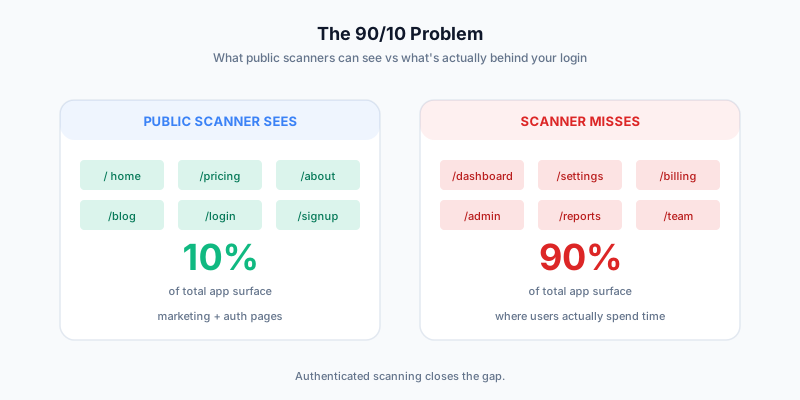
Think about the surface area of any modern SaaS product: signup → email verification → onboarding → dashboard → settings → reports → billing → admin panels. Maybe 5-10% of that is reachable without a login. The other 90-95% — the parts users actually spend time in — sits behind authentication. And that's where accessibility issues hide, because traditional scanners hit a 401 and silently skip.
This guide is the practical playbook for getting accessibility scans into the authenticated parts of your application. We'll cover the three auth methods that actually work, when to pick which, the security model your team should know about, and a worked example of auditing a Stripe-protected dashboard end-to-end.
What you'll learn
By the end of this post you'll know which of the three auth methods (cookie, login form, custom headers) fits your app, how to handle MFA and SSO, what credentials you can safely give to a scanner, and how to audit a real authenticated flow in TestKase in under 5 minutes.
The 90/10 problem
A common pattern: a team runs an accessibility scan against their marketing site, gets a clean WCAG 2.2 AA report, and ships an accessibility statement. Six months later, a customer files a complaint about a screen-reader trap in the product's settings page — a part of the app the scanner never touched.
This is the 90/10 problem: scanners cover the 10% of your surface that's public, while customer pain lives in the 90% behind auth.
Why it happens:
- Most scanners are GET-only. They follow links, but they can't fill in a login form.
- Even scanners that can log in are awkward. Configuration is fragile, MFA breaks them, sessions expire mid-scan.
- Security teams (rightly) hesitate. Giving a SaaS scanner your login credentials feels off, even when it's encrypted at rest.
The result: most teams scan only the public surface, declare victory, and miss the bulk of their real WCAG violations.
The three authentication methods
Every modern web app uses one of three auth patterns. A good accessibility scanner supports all three. TestKase does, and the interface looks the same regardless — but the backing mechanism differs and you should know which fits your app.
Method 1: Cookie authentication
How it works: You log into your app once in a browser. You copy the session cookies (name, value, domain). The scanner injects those cookies into its headless browser before each request. Every page loads as the logged-in user.
When to pick it:
- Your app uses session cookies for auth (most SaaS apps do).
- You can manually log in and grab cookies via DevTools.
- You're scanning staging or a test environment where the session can live for hours.
When to avoid it:
- The app rotates session cookies on every request (rare, but some banks do this).
- The cookie expires faster than the scan completes (some apps issue 5-minute tokens).
Setup time: 2 minutes. Open DevTools → Application → Cookies → copy the Cookie header value.
Gotchas:
- Make sure you copy all relevant cookies, not just the obvious "session" one. Apps often have a CSRF cookie and a session cookie, both required.
- If your app uses
HttpOnlycookies, you'll need to grab them from the Network tab, not the JavaScript document.cookie. - Domain-binding matters. Cookies for
app.example.comwon't be sent toapi.example.com. List both subdomains in the cookie config.
Method 2: Login-form authentication
How it works: You provide the scanner with a login URL, CSS selectors for the username field, password field, and submit button, plus a username and password. The scanner navigates to the login URL, fills in the form, clicks submit, waits for redirect to a known "post-login URL", and then begins scanning.
When to pick it:
- Your app's session is short-lived and you don't want to refresh cookies manually.
- You want the scan to start from a fresh login each run (more realistic, exercises the auth path itself).
- The scan runs on a schedule and needs to authenticate without human intervention.
When to avoid it:
- The login flow is multi-step (e.g., enter email → next page → enter password). Most scanners support only single-page forms; multi-step flows need cookie auth instead.
- The app uses MFA. See the MFA section below for the workaround.
- The login form has dynamic selectors (e.g., randomly-generated input names for anti-bot reasons). Use cookie auth.
Setup time: 5 minutes. Identify the four selectors and confirm they don't change between sessions.
Gotchas:
- Use stable selectors.
[name="email"]is more stable than#login-email-7f3aor.css-1234. - Build a service account dedicated to the scanner. Don't reuse a real user's credentials — both for security (limit blast radius) and for clean test data (the scanner's clicks don't pollute a real user's history).
- If the app shows a Captcha on suspicious activity, exempt the service account in your fraud-detection rules.
Method 3: HTTP header authentication
How it works: You provide the scanner with a set of HTTP headers (typically Authorization: Bearer ... or X-API-Key: ...). The scanner attaches those headers to every request before scanning.
When to pick it:
- Your app uses OAuth bearer tokens, JWTs, or API keys for auth.
- You're scanning an API-driven SPA where session state is in headers, not cookies.
- Your app is behind a corporate SSO that issues a long-lived bearer token (Okta, Auth0, Azure AD).
When to avoid it:
- The token expires every 15 minutes. Use cookie auth on a refresh-friendly token instead, or refresh the header pre-scan via a small script.
Setup time: 2 minutes. Generate a service-account API key or copy a bearer token.
Gotchas:
- Generate API keys with the minimum scopes needed. A scanner needs read access to all routes — usually that maps to a "viewer" or "auditor" role. Don't use admin tokens.
- Set a reasonable expiry on the token (e.g., 30 days), and rotate it as part of your normal credential rotation cycle.
- Some apps still require a session cookie plus an Authorization header. In that case, configure both.
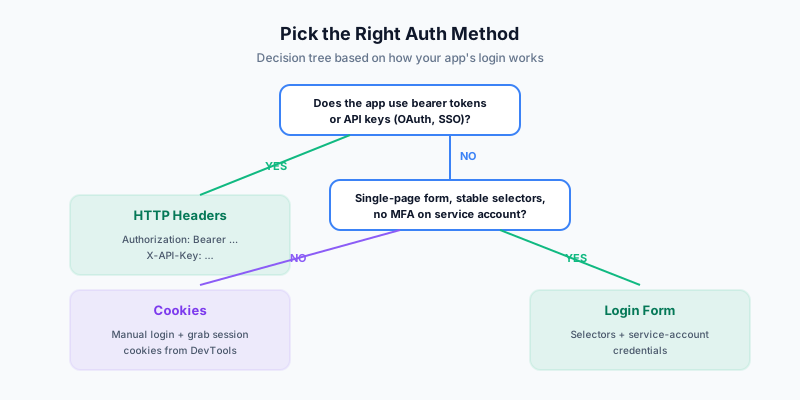
How to pick: a quick decision tree
Use this in order:
- Does your app use OAuth bearer tokens or API keys exposed to the SPA? → HTTP headers.
- Is your login a single page with stable selectors and no MFA on the service account? → Login form.
- Otherwise → Cookies.
Most TestKase customers end up using cookie auth on staging and login-form auth on prod (with a service account exempt from MFA). The two methods complement each other rather than competing.
The security model
If you're going to hand a scanner your authentication, you should know exactly what happens to it. Here's the model TestKase uses; if you're using a different scanner, ask the vendor for equivalent details.
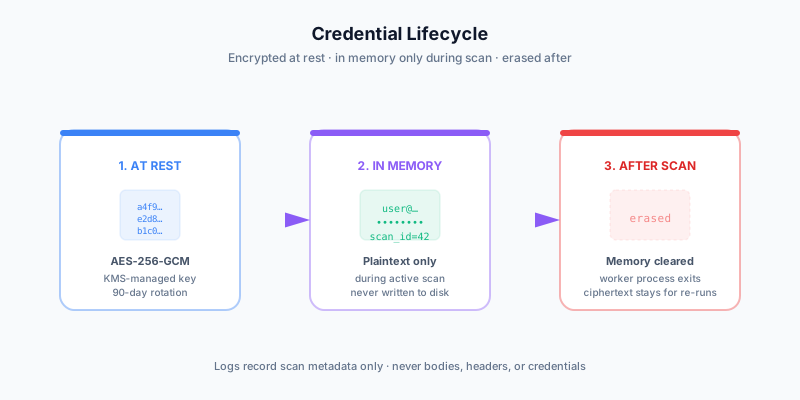
At rest. Auth credentials (cookies, login form passwords, header values) are encrypted with AES-256-GCM. The encryption key is managed by AWS KMS, never accessible to TestKase application code, and rotated automatically every 90 days. Even a compromised TestKase backend can't read your credentials without first compromising KMS, which has independent access controls.
In flight. Every API call from your browser to the TestKase backend is over HTTPS. Every scanner-to-target-app request also runs over HTTPS (or whatever the target app uses).
During a scan. The encrypted credential is decrypted into memory only during an active scan run. The plaintext exists in the scan worker's memory and never touches disk. After the scan completes, the in-memory plaintext is overwritten and the worker process exits.
In logs. TestKase scan logs record metadata (scan ID, target URLs, finding counts, duration) but never log request bodies, response bodies, headers, or credentials. The audit trail tells you that a scan happened and what it found, never the secret material.
Screenshots. The scanner takes one screenshot per audited URL to support the issue-detail view (so you can see where the violation is). For authenticated scans, those screenshots may contain sensitive data — your customer list, billing info, internal dashboards. Screenshot retention is configurable per workspace; default is 30 days, you can set it to 0 for environments where screenshots themselves are sensitive.
One thing to verify
Before pasting any production credential into any scanner — TestKase's, or anyone else's — confirm with the vendor in writing: encryption at rest, no plaintext logging, screenshot retention policy. If the vendor can't answer all three clearly, don't use them with prod credentials. Use a staging clone instead.
Handling MFA
The single biggest practical headache with authenticated scanning is multi-factor authentication. A scanner can't read your phone. Three patterns work; pick the one that matches your security posture.
Pattern A: MFA-exempt service account
Most enterprise IDPs (Okta, Azure AD, Google Workspace, Auth0) let admins create service accounts that bypass MFA. The accounts are typically:
- Read-only or scope-limited.
- Allow-listed by IP (so the credential is only usable from your scanner's egress).
- Audit-logged separately so security teams can track scanner activity.
This is the cleanest pattern for production accessibility scanning at most companies. Set it up once, scan forever.
Pattern B: Long-lived post-MFA cookie
If you can't create an MFA-exempt account, log in manually once (with MFA), and grab the post-MFA session cookie. That cookie was issued after MFA passed, so it carries the MFA-validated session.
The catch is the cookie's TTL. If your IDP issues a 1-hour session cookie, you need to refresh it manually before each scan. If it issues a 24-hour cookie, you can scan once a day comfortably. If it issues a "remember me for 30 days" cookie, you're set for a month.
This works fine for ad-hoc audits but isn't great for scheduled scans.
Pattern C: Skip MFA on a dedicated test tenant
For products with multi-tenancy, the cleanest answer is often a separate test tenant that doesn't have MFA enabled at all. The scanner authenticates with a regular username/password against the test tenant, exercises every feature, and never touches a real customer environment.
This is the pattern most TestKase enterprise customers use. The test tenant gets exact-feature parity with production via tenant cloning, but lives in a separate database with no real customer data.
SAML and SSO scanning
If your app authenticates via SAML SSO, headers and login-form auth both fail because the SAML dance happens between your app and the IDP. Two workarounds:
Workaround 1: SAML-bypass tokens. Most SAML apps support a "session token bypass" where, after a successful SAML login, the app issues a long-lived application token (typically a cookie or bearer token). Use that for the scan, not the SAML flow itself.
Workaround 2: Pre-authenticated session export. Some apps let you export a .har file containing a logged-in session. Tools like puppeteer can replay the cookies from the HAR. This is brittle but works for one-off audits.
For most SAML-protected apps, the cleanest setup is: enable a "service account" auth method (often called "API key" or "Personal Access Token") that bypasses SAML, scope it to read-only, and use it via HTTP header auth on the scanner.
Worked example: auditing a Stripe-protected dashboard
Let's walk through scanning a real authenticated dashboard end-to-end. The setup: a SaaS billing app where the dashboard is at https://app.example.com/dashboard, login is at https://app.example.com/login, and a successful login redirects to https://app.example.com/dashboard.
Step 1 — Create a service account
In the target app, create a user called accessibility-scanner@example.com. Give it read-only access to all customer data. Skip MFA. Document the credential in your password manager with a clear "for accessibility scanning only" tag.
Step 2 — Configure the scan in TestKase
Open TestKase → Web Scanner → New Scan. Add the URLs you want audited:
https://app.example.com/dashboardhttps://app.example.com/dashboard/invoiceshttps://app.example.com/dashboard/settingshttps://app.example.com/dashboard/billinghttps://app.example.com/dashboard/team
Click the gear icon → Authentication tab → choose Login Form. Enter:
- Login URL:
https://app.example.com/login - Username field selector:
input[name="email"] - Password field selector:
input[name="password"] - Submit button selector:
button[type="submit"] - Username:
accessibility-scanner@example.com - Password: (paste from password manager)
- Wait after login: 3 seconds (lets the dashboard render before scanning starts)
- Success URL:
https://app.example.com/dashboard(so the scanner knows login succeeded)
Save the auth config. TestKase encrypts it immediately.
Step 3 — Run the scan
Click Run Scan. The scanner:
- Spins up a headless Chromium worker.
- Navigates to the login URL.
- Fills in the form using your selectors.
- Clicks submit, waits for redirect to the success URL.
- For each URL in your list, navigates as the authenticated user, runs axe-core, captures findings.
- Closes the worker, encrypts results, presents the report.
A typical 5-URL authenticated scan completes in about 2-3 minutes.
Step 4 — Triage the findings
The first authenticated scan of a SaaS dashboard usually surfaces 50-150 findings. Common patterns:
- Custom dropdown components missing
role="combobox"andaria-expanded. - Modal dialogs without focus trap (Tab leaks out to the page behind the modal).
- Dashboard cards missing semantic headings (everything is
<div>). - Toast notifications without
aria-live(screen readers never announce errors). - Color contrast on hover states and focus rings.
Severity distribution: typically 5-15% critical, 25-35% serious, 40-50% moderate, 10-15% minor. Use our severity triage guide to assign owners.
Step 5 — Schedule recurring scans
Once the first audit passes, set the scan to recur weekly. New code lands every sprint; new violations creep in. A weekly scan catches them within a week of merge — fast enough to fix before they ship to a meaningful portion of users. See Accessibility in CI/CD for how to push this even earlier into the pre-merge pipeline.
What this unlocks
Authenticated scanning isn't a nice-to-have. It's the difference between an accessibility program that addresses ~10% of your real product surface and one that addresses 100%.
Three concrete wins teams report after the first authenticated audit:
-
Internal-tool accessibility. The admin panels, settings flows, and back-office tools that public scanners never reach typically have 3-5× the violation density of public-facing pages. Authenticated scanning surfaces this hidden debt.
-
Realistic compliance posture. External auditors test what users actually use, not just the homepage. An accessibility statement claiming WCAG 2.2 AA conformance based on a marketing-site-only scan won't survive a real audit.
-
Pre-launch confidence. Authenticated scanning lets you audit a feature before GA. Build a feature behind a feature flag, scan it as the flag-eligible test user, fix issues, then ship to all users. Beats reactive bug-fixing every time.
Closing
If your app has an authenticated surface — and almost every SaaS app does — accessibility scanning that stops at the login page is, at best, a partial program. The three auth methods covered here (cookie, login-form, custom headers) cover essentially every real-world login pattern, and the security model is designed so handing a scanner credentials doesn't add meaningful risk over the credentials' baseline exposure.
Set up the right auth method for your app, scan the parts of your product that actually matter, and put the resulting findings into the same triage flow as everything else.
TestKase's authenticated scanning is included on every plan tier, free included. The setup walkthrough above takes less than 10 minutes for most apps.
Try authenticated accessibility scanning free →Stay up to date with TestKase
Get the latest articles on test management, QA best practices, and product updates delivered to your inbox.
SubscribeShare this article
Related Articles
Critical, Serious, Moderate, Minor: How to Triage Accessibility Issues by Severity
A practical triage policy template — SLAs per severity, ownership across design / engineering / content / QA, and how to share findings cross-team without forwarding PDFs.
Read more →Why Single-Page Accessibility Scans Miss Real Bugs (and What Multi-Page Audits Catch)
Single-URL accessibility scanners miss six entire categories of WCAG violations. Here's what falls through the gap, and how flow-aware audits catch the issues your users actually hit.
Read more →Accessibility Testing in CI/CD: Catching WCAG Issues Before They Ship
Three integration patterns, GitHub Actions / GitLab / CircleCI templates, and a 3-quarter rollout playbook to take an engineering team from zero accessibility in CI to block-on-fail.
Read more →