GitHub Actions for Test Automation: A Complete Setup Guide

GitHub Actions for Test Automation: A Complete Setup Guide
You merge a pull request on Friday afternoon. Monday morning, the QA lead messages you: "The checkout flow is broken on Safari." Turns out your CSS refactor broke a flexbox layout, but your CI pipeline only ran tests on Chrome. Nobody caught it because cross-browser testing was a manual step that someone forgot.
GitHub Actions can prevent this. It's GitHub's built-in CI/CD platform, and for test automation, it's remarkably capable — matrix builds for cross-browser testing, parallel execution for speed, caching for efficiency, and artifact storage for test reports. Yet many teams use it for nothing more than npm test on a single Node version.
This guide takes you from a basic test workflow to a production-grade setup with matrix testing, dependency caching, parallel execution, secrets management, and automated result reporting. Whether you're running Jest, Playwright, Cypress, or Pytest, the patterns here apply.
GitHub Actions Fundamentals for Testers
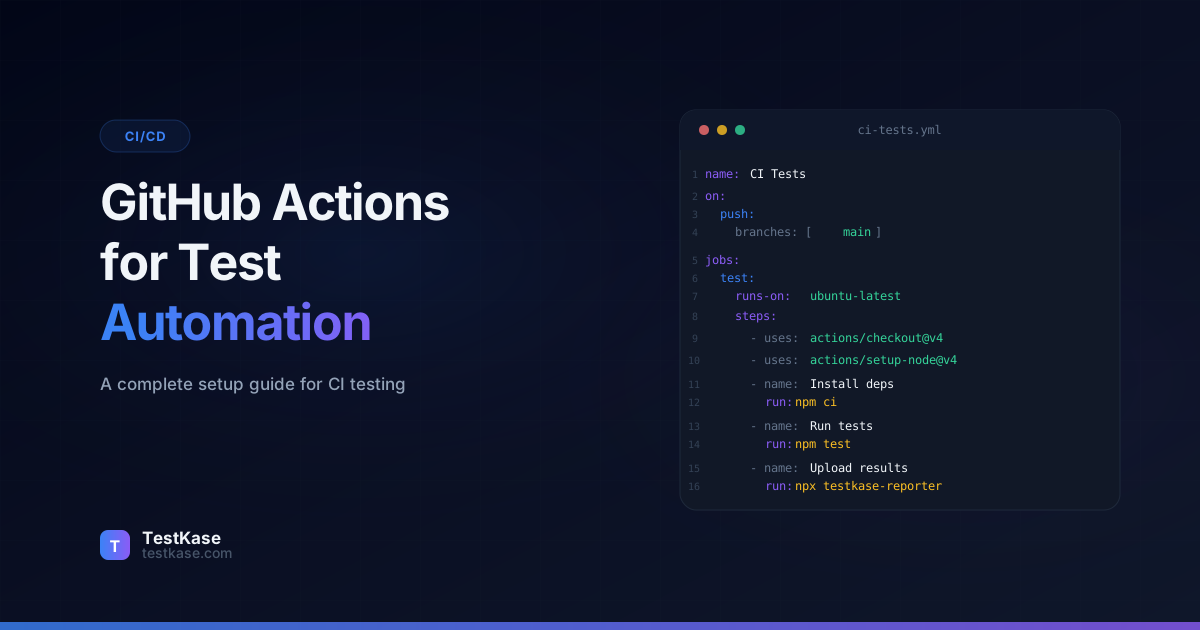
If you've never written a workflow file, here's the mental model: a workflow is a YAML file in .github/workflows/ that defines jobs, which contain steps. Workflows trigger on events — pushes, pull requests, schedules, or manual dispatch.
# .github/workflows/tests.yml
name: Run Tests
on:
  push:
    branches: [main]
  pull_request:
    branches: [main]

jobs:
  test:
    runs-on: ubuntu-latest
    steps:
      - uses: actions/checkout@v4
      - uses: actions/setup-node@v4
        with:
          node-version: '20'
      - run: npm ci
      - run: npm test
That's a complete workflow. On every push or PR to main, GitHub spins up an Ubuntu VM, installs Node 20, installs dependencies, and runs your tests. Results appear as a check on the PR — green or red.
Free tier limits
GitHub Actions provides 2,000 free minutes per month for private repositories and unlimited minutes for public repos. A typical test suite running 5 minutes per PR, with 20 PRs per week, uses about 400 minutes monthly — well within the free tier. Linux runners are cheapest; macOS runners consume minutes at a 10x rate.
But this basic setup has gaps. No caching means npm ci downloads every package on every run. No parallelism means a 20-minute E2E suite blocks the entire pipeline. No matrix means you're testing one browser on one OS. Let's fix each of these.
Key Concepts Every Tester Should Know
Before diving deeper, here are the GitHub Actions building blocks you'll use repeatedly:
- Runner — The virtual machine that executes your workflow.
ubuntu-latestis the most common and cheapest. Windows and macOS runners are available for platform-specific testing. - Job — A set of steps that execute on a single runner. Jobs run in parallel by default unless you define dependencies with
needs. - Step — A single command or action within a job. Steps run sequentially.
- Action — A reusable unit of code published to the GitHub Marketplace.
actions/checkout@v4andactions/setup-node@v4are actions. - Artifact — A file or directory preserved after a job completes. Use artifacts for test reports, screenshots, and coverage data.
- Secret — An encrypted value stored at the repository or organization level. Use secrets for API keys, tokens, and credentials.
Understanding these concepts helps you read and debug workflow files more effectively. When a workflow fails, knowing whether the issue is at the job level (wrong runner) or step level (bad command) speeds up troubleshooting.
Understanding Workflow Triggers
Before diving into optimization, let's cover triggers in more depth. The on section controls when your workflow runs, and getting it right prevents both wasted compute and missed testing.
Pull Request Triggers
on:
  pull_request:
    branches: [main, develop]
    paths:
      - 'src/**'
      - 'tests/**'
      - 'package.json'
      - 'package-lock.json'
The paths filter is powerful — it means documentation-only PRs (changes to README.md or docs/) won't trigger your test suite. For a team pushing 30 PRs per week, this can save hundreds of minutes monthly.
Scheduled Runs
on:
  schedule:
    - cron: '0 6 * * 1-5'  # 6 AM UTC, Monday through Friday
Scheduled runs are ideal for extended test suites that are too slow for PR triggers — full regression suites, performance tests, or cross-browser matrices that test every combination rather than a subset.
Manual Dispatch
on:
  workflow_dispatch:
    inputs:
      environment:
        description: 'Target environment'
        required: true
        default: 'staging'
        type: choice
        options:
          - staging
          - uat
          - production
      test_suite:
        description: 'Test suite to run'
        required: true
        default: 'regression'
        type: choice
        options:
          - smoke
          - regression
          - full
Manual dispatch lets QA leads trigger specific test suites against specific environments on demand. The input parameters appear as a form in the GitHub UI — no YAML editing required.
Combining Triggers
on:
  push:
    branches: [main]
  pull_request:
    branches: [main]
  schedule:
    - cron: '0 6 * * 1-5'
  workflow_dispatch:
This is a common production pattern: test on every PR, test on merge to main, run a full suite on a schedule, and allow manual triggers for ad-hoc testing.
Trigger Best Practices for Test Workflows
Choosing the right trigger strategy prevents two common problems: running too many tests (wasting compute) and running too few (missing regressions).
Here's a proven trigger strategy used by teams deploying 5-10 times per week:
| Trigger | Test Suite | Purpose |
|---------|-----------|---------|
| pull_request with path filters | Unit + smoke E2E | Fast feedback for developers |
| push to main | Unit + integration + smoke E2E | Verify merged code is clean |
| schedule (nightly) | Full regression + cross-browser matrix | Comprehensive coverage |
| workflow_dispatch | Any suite, any environment | Ad-hoc testing by QA leads |
The key insight is that not every trigger needs to run the same tests. PRs need fast feedback (under 5 minutes). The nightly run can take 30+ minutes because nobody is waiting for it.
Caching Dependencies for Faster Runs
Downloading dependencies on every run wastes time and bandwidth. The actions/cache action stores your node_modules (or pip cache, or Gradle cache) between runs.
jobs:
  test:
    runs-on: ubuntu-latest
    steps:
      - uses: actions/checkout@v4
      - uses: actions/setup-node@v4
        with:
          node-version: '20'
          cache: 'npm'  # Built-in caching for npm
      - run: npm ci
      - run: npm test
The setup-node action has built-in cache support — just set cache: 'npm'. It caches the global npm cache directory and restores it when the lockfile hasn't changed. This alone can cut npm ci from 45 seconds to 5 seconds.
For more control, use actions/cache directly:
- uses: actions/cache@v4
  with:
    path: |
      ~/.npm
      node_modules
    key: ${{ runner.os }}-node-${{ hashFiles('**/package-lock.json') }}
    restore-keys: |
      ${{ runner.os }}-node-
Caching for Different Ecosystems
The caching pattern varies by language and package manager:
# Python with pip
- uses: actions/cache@v4
  with:
    path: ~/.cache/pip
    key: ${{ runner.os }}-pip-${{ hashFiles('**/requirements.txt') }}

# Java with Gradle
- uses: actions/cache@v4
  with:
    path: |
      ~/.gradle/caches
      ~/.gradle/wrapper
    key: ${{ runner.os }}-gradle-${{ hashFiles('**/*.gradle*', '**/gradle-wrapper.properties') }}

# Ruby with Bundler
- uses: actions/cache@v4
  with:
    path: vendor/bundle
    key: ${{ runner.os }}-gems-${{ hashFiles('**/Gemfile.lock') }}
Cache Playwright browsers too
Playwright browser binaries are 200–400 MB. Cache them to avoid downloading on every run. Set PLAYWRIGHT_BROWSERS_PATH to a consistent directory and cache it with a key based on the Playwright version in your lockfile.
Here's the Playwright browser caching pattern:
- name: Get Playwright version
  id: playwright-version
  run: echo "PLAYWRIGHT_VERSION=$(node -e "console.log(require('@playwright/test/package.json').version)")" >> $GITHUB_OUTPUT

- uses: actions/cache@v4
  id: playwright-cache
  with:
    path: ~/.cache/ms-playwright
    key: ${{ runner.os }}-playwright-${{ steps.playwright-version.outputs.PLAYWRIGHT_VERSION }}

- name: Install Playwright browsers
  if: steps.playwright-cache.outputs.cache-hit != 'true'
  run: npx playwright install --with-deps

- name: Install Playwright system deps only
  if: steps.playwright-cache.outputs.cache-hit == 'true'
  run: npx playwright install-deps
This caches the browser binaries but always installs system dependencies (like shared libraries), since those aren't part of the cache. The result: browser installation drops from 60-90 seconds to near-zero on cache hits.
Measuring Cache Effectiveness
How do you know your caching is actually working? Check two metrics:
- Cache hit rate — View in the Actions tab under each run's cache step. A healthy cache should hit 80%+ of the time.
- Time saved — Compare the dependency installation step duration with and without cache. Healthy caching typically saves 30-60 seconds per run.
If your cache hit rate is low, the most common cause is a lockfile that changes frequently (e.g., renovate or dependabot updates). Consider using restore-keys to fall back to a partial cache match rather than downloading everything from scratch.
Matrix Strategy: Cross-Browser and Cross-Version Testing
Matrix builds run the same job across multiple configurations in parallel. This is how you test on Chrome, Firefox, and Safari — or across Node 18, 20, and 22 — without writing separate jobs.
jobs:
  test:
    runs-on: ubuntu-latest
    strategy:
      matrix:
        browser: [chromium, firefox, webkit]
        node-version: [18, 20, 22]
      fail-fast: false
    steps:
      - uses: actions/checkout@v4
      - uses: actions/setup-node@v4
        with:
          node-version: ${{ matrix.node-version }}
          cache: 'npm'
      - run: npm ci
      - run: npx playwright install --with-deps ${{ matrix.browser }}
      - run: npx playwright test --project=${{ matrix.browser }}
This creates 9 parallel jobs (3 browsers x 3 Node versions). The fail-fast: false setting ensures all combinations run even if one fails — you want to see the full picture, not just the first failure.
Excluding and Including Specific Combinations
Not every matrix combination makes sense. You can exclude specific pairs or include extra configurations:
strategy:
  matrix:
    browser: [chromium, firefox, webkit]
    os: [ubuntu-latest, windows-latest]
    exclude:
      - browser: webkit
        os: windows-latest  # WebKit not supported on Windows runners
    include:
      - browser: chromium
        os: macos-latest  # Add a macOS Chrome run
Smart Matrix Strategies for Different Scenarios
For PR checks, you might want a lean matrix (fast feedback):
# PR checks: fast feedback on the most common configuration
strategy:
  matrix:
    browser: [chromium]
    node-version: [20]
For nightly regression, use the full matrix:
# Nightly: comprehensive coverage across all configurations
strategy:
  matrix:
    browser: [chromium, firefox, webkit]
    node-version: [18, 20, 22]
    os: [ubuntu-latest, windows-latest, macos-latest]
  fail-fast: false
This two-tier approach gives developers fast PR feedback (1-2 minutes, one configuration) while still catching cross-browser and cross-platform issues in the nightly run.
Dynamic Matrix Generation
For advanced use cases, you can generate the matrix dynamically based on changed files or other conditions:
jobs:
  determine-matrix:
    runs-on: ubuntu-latest
    outputs:
      matrix: ${{ steps.set-matrix.outputs.matrix }}
    steps:
      - uses: actions/checkout@v4
      - id: set-matrix
        run: |
          if [[ "${{ github.event_name }}" == "schedule" ]]; then
            echo 'matrix={"browser":["chromium","firefox","webkit"],"shard":["1/4","2/4","3/4","4/4"]}' >> $GITHUB_OUTPUT
          else
            echo 'matrix={"browser":["chromium"],"shard":["1/2","2/2"]}' >> $GITHUB_OUTPUT
          fi

  test:
    needs: determine-matrix
    runs-on: ubuntu-latest
    strategy:
      matrix: ${{ fromJson(needs.determine-matrix.outputs.matrix) }}
    steps:
      - uses: actions/checkout@v4
      - run: npx playwright test --project=${{ matrix.browser }} --shard=${{ matrix.shard }}
This pattern lets your workflow adapt its breadth based on context — comprehensive for nightly runs, focused for PR checks — without maintaining two separate workflow files.
Parallel Test Execution with Sharding
For large E2E suites, even matrix builds aren't fast enough. Sharding splits your test files across multiple runners executing in parallel.
Playwright has built-in sharding support:
jobs:
  test:
    runs-on: ubuntu-latest
    strategy:
      matrix:
        shard: [1/4, 2/4, 3/4, 4/4]
    steps:
      - uses: actions/checkout@v4
      - uses: actions/setup-node@v4
        with:
          node-version: '20'
          cache: 'npm'
      - run: npm ci
      - run: npx playwright install --with-deps
      - run: npx playwright test --shard=${{ matrix.shard }}
      - uses: actions/upload-artifact@v4
        if: always()
        with:
          name: test-results-${{ strategy.job-index }}
          path: test-results/
          retention-days: 7
Four runners execute your tests simultaneously, each handling roughly 25% of the test files. A 20-minute suite becomes a 5-minute suite. The artifacts step preserves test results from each shard for later analysis.
Choosing the Right Shard Count
How many shards should you use? The answer depends on your suite size and diminishing returns:
| Suite Duration (1 runner) | Recommended Shards | Expected Duration | Overhead | |---|---|---|---| | 5-10 minutes | 2 | 3-6 min | Low | | 10-20 minutes | 3-4 | 4-7 min | Moderate | | 20-40 minutes | 4-6 | 5-10 min | Moderate | | 40+ minutes | 6-10 | 6-12 min | High |
Each shard adds overhead: runner startup time (30-60 seconds), dependency installation (even with caching), and browser installation. Beyond 6-8 shards, the overhead often exceeds the time saved from splitting.
Sharding for Cypress
Cypress doesn't have built-in sharding, but you can achieve it with cypress-split or by listing spec files manually:
jobs:
  test:
    runs-on: ubuntu-latest
    strategy:
      matrix:
        shard: [1, 2, 3, 4]
    steps:
      - uses: actions/checkout@v4
      - uses: actions/setup-node@v4
        with:
          node-version: '20'
          cache: 'npm'
      - run: npm ci
      - run: npx cypress-split --total 4 --index ${{ matrix.shard }}
        env:
          CYPRESS_RECORD_KEY: ${{ secrets.CYPRESS_RECORD_KEY }}
Sharding for Pytest
jobs:
  test:
    runs-on: ubuntu-latest
    strategy:
      matrix:
        shard: [0, 1, 2, 3]
    steps:
      - uses: actions/checkout@v4
      - uses: actions/setup-python@v5
        with:
          python-version: '3.12'
          cache: 'pip'
      - run: pip install -r requirements.txt
      - run: pytest --splits 4 --group ${{ matrix.shard }} --splitting-algorithm least_duration
The pytest-split plugin distributes tests based on historical execution times, ensuring each shard takes roughly the same amount of time. This is more efficient than naive file-based splitting, where one shard might contain all the slow integration tests.
Service Containers for Database Testing
Many test suites need a database. GitHub Actions supports service containers — Docker containers that run alongside your job and are accessible via localhost.
jobs:
  test:
    runs-on: ubuntu-latest
    services:
      postgres:
        image: postgres:16
        env:
          POSTGRES_USER: test
          POSTGRES_PASSWORD: testpass
          POSTGRES_DB: testdb
        ports:
          - 5432:5432
        options: >-
          --health-cmd pg_isready
          --health-interval 10s
          --health-timeout 5s
          --health-retries 5
      redis:
        image: redis:7
        ports:
          - 6379:6379
        options: >-
          --health-cmd "redis-cli ping"
          --health-interval 10s
          --health-timeout 5s
          --health-retries 5
    steps:
      - uses: actions/checkout@v4
      - uses: actions/setup-node@v4
        with:
          node-version: '20'
          cache: 'npm'
      - run: npm ci
      - run: npm run test:integration
        env:
          DATABASE_URL: postgresql://test:testpass@localhost:5432/testdb
          REDIS_URL: redis://localhost:6379
The options block configures health checks so your tests don't start until the database is ready. Without health checks, you'll get intermittent "connection refused" failures as the database container is still initializing.
Common Service Container Patterns
Beyond Postgres and Redis, here are service configurations for other common dependencies:
# MongoDB
services:
  mongo:
    image: mongo:7
    ports:
      - 27017:27017
    options: >-
      --health-cmd "mongosh --eval 'db.runCommand(\"ping\").ok'"
      --health-interval 10s
      --health-timeout 5s
      --health-retries 5

# Elasticsearch
services:
  elasticsearch:
    image: elasticsearch:8.12.0
    ports:
      - 9200:9200
    env:
      discovery.type: single-node
      xpack.security.enabled: 'false'
    options: >-
      --health-cmd "curl -s http://localhost:9200/_cluster/health"
      --health-interval 10s
      --health-timeout 5s
      --health-retries 10

# MySQL
services:
  mysql:
    image: mysql:8.0
    ports:
      - 3306:3306
    env:
      MYSQL_ROOT_PASSWORD: testpass
      MYSQL_DATABASE: testdb
    options: >-
      --health-cmd "mysqladmin ping -h localhost"
      --health-interval 10s
      --health-timeout 5s
      --health-retries 5
Service containers are one of GitHub Actions' strongest features for integration testing. They eliminate the "works on my machine" problem by providing consistent, ephemeral database instances for every test run.
Storing Test Reports as Artifacts
Test results are useless if they vanish when the runner shuts down. GitHub Actions artifacts persist files after the job completes, making reports accessible from the workflow summary page.
- name: Run tests
  run: npx playwright test
  continue-on-error: true

- name: Upload HTML report
  uses: actions/upload-artifact@v4
  if: always()
  with:
    name: playwright-report
    path: playwright-report/
    retention-days: 30

- name: Upload JUnit results
  uses: actions/upload-artifact@v4
  if: always()
  with:
    name: junit-results
    path: results/junit-report.xml
    retention-days: 30
The if: always() ensures artifacts upload even on test failures — which is exactly when you need them most. Without it, a failing test step would skip the artifact upload.
Merging Sharded Reports
When using sharding, each runner produces a partial report. You need a follow-up job that downloads all shards and merges them:
merge-reports:
  needs: test
  runs-on: ubuntu-latest
  if: always()
  steps:
    - uses: actions/checkout@v4
    - uses: actions/download-artifact@v4
      with:
        pattern: test-results-*
        merge-multiple: true
        path: all-results/
    - run: npx playwright merge-reports --reporter html ./all-results
    - uses: actions/upload-artifact@v4
      with:
        name: full-test-report
        path: playwright-report/
Adding Test Results to PR Comments
For even better visibility, post test results directly as a PR comment:
- name: Publish test results
  uses: EnricoMi/publish-unit-test-result-action@v2
  if: always()
  with:
    files: results/junit-report.xml
    comment_mode: update
    check_name: 'Test Results'
This creates a summary table in the PR showing total tests, passed, failed, and skipped — with links to individual test results. It's the fastest way for reviewers to assess test health without leaving the PR page.
Capturing Screenshots and Videos on Failure
For E2E tests, screenshots and video recordings of failures are invaluable for debugging. Both Playwright and Cypress can capture these automatically:
- name: Run E2E tests
  run: npx playwright test
  env:
    CI: true

- name: Upload failure screenshots
  uses: actions/upload-artifact@v4
  if: failure()
  with:
    name: failure-screenshots
    path: test-results/**/*.png
    retention-days: 14

- name: Upload failure videos
  uses: actions/upload-artifact@v4
  if: failure()
  with:
    name: failure-videos
    path: test-results/**/*.webm
    retention-days: 7
Note the if: failure() condition instead of if: always() — screenshots and videos are only useful when tests fail, so there's no need to upload them on success. This saves artifact storage space.
Secrets Management for Test Environments
Tests that hit staging APIs, authenticate with test accounts, or connect to external services need credentials. Never hard-code these in your workflow files.
GitHub Actions provides encrypted secrets at the repository and organization level:
- name: Run API tests
  run: npm run test:api
  env:
    API_BASE_URL: ${{ secrets.STAGING_API_URL }}
    TEST_USER_EMAIL: ${{ secrets.TEST_USER_EMAIL }}
    TEST_USER_PASSWORD: ${{ secrets.TEST_USER_PASSWORD }}
    API_KEY: ${{ secrets.STAGING_API_KEY }}
Secrets are masked in logs — if a secret value appears in stdout, GitHub replaces it with ***. But be careful: secrets transformed by your code (base64-encoded, URL-encoded, split across variables) won't be automatically masked.
Environment-Specific Secrets
For teams that test against multiple environments (staging, UAT, production), use GitHub Environments:
jobs:
  test-staging:
    runs-on: ubuntu-latest
    environment: staging
    steps:
      - run: npm run test:e2e
        env:
          BASE_URL: ${{ vars.BASE_URL }}  # Environment variable (not secret)
          API_KEY: ${{ secrets.API_KEY }}  # Environment secret
Each environment can have its own secrets and variables, plus optional protection rules like required reviewers before deployment.
Secrets in pull requests from forks
GitHub does NOT expose repository secrets to workflows triggered by pull requests from forked repositories. This is a security feature, but it means your tests can't authenticate against staging APIs when external contributors submit PRs. Use environment-level secrets with required reviewers to control access.
Secret Rotation Best Practices
Secrets used in CI pipelines should be rotated regularly — every 90 days is a common policy. Here's how to manage rotation without breaking your pipelines:
- Create the new secret with a versioned name (e.g.,
API_KEY_V2) alongside the old one. - Update your workflow to reference the new secret.
- Verify the workflow runs successfully with the new secret.
- Delete the old secret only after confirming the transition.
For teams with many repositories, use organization-level secrets to rotate once instead of per-repository.
Conditional Test Execution
Not every PR needs every test. Use path filters and conditional logic to run only what's relevant:
jobs:
  detect-changes:
    runs-on: ubuntu-latest
    outputs:
      frontend: ${{ steps.filter.outputs.frontend }}
      backend: ${{ steps.filter.outputs.backend }}
      e2e: ${{ steps.filter.outputs.e2e }}
    steps:
      - uses: actions/checkout@v4
      - uses: dorny/paths-filter@v3
        id: filter
        with:
          filters: |
            frontend:
              - 'src/frontend/**'
              - 'package.json'
            backend:
              - 'src/api/**'
              - 'requirements.txt'
            e2e:
              - 'src/**'
              - 'tests/e2e/**'

  frontend-tests:
    needs: detect-changes
    if: needs.detect-changes.outputs.frontend == 'true'
    runs-on: ubuntu-latest
    steps:
      - uses: actions/checkout@v4
      - run: npm ci && npm run test:frontend

  backend-tests:
    needs: detect-changes
    if: needs.detect-changes.outputs.backend == 'true'
    runs-on: ubuntu-latest
    steps:
      - uses: actions/checkout@v4
      - run: pip install -r requirements.txt && pytest tests/api/

  e2e-tests:
    needs: detect-changes
    if: needs.detect-changes.outputs.e2e == 'true'
    runs-on: ubuntu-latest
    steps:
      - uses: actions/checkout@v4
      - run: npm ci && npx playwright test
This pattern avoids running slow E2E tests when only documentation or backend code changed. For a monorepo with multiple services, this can cut CI time by 50-70%.
Reporting Results to Your Test Management Tool
The final piece: sending results from GitHub Actions to your test management platform. This closes the loop — your pipeline runs tests, your management tool tracks results, and your team sees a unified quality picture.
- name: Report results to TestKase
  if: always()
  run: |
    npx testkase-reporter \
      --api-key ${{ secrets.TESTKASE_API_KEY }} \
      --project-id ${{ vars.TESTKASE_PROJECT_ID }} \
      --run-name "PR #${{ github.event.pull_request.number }}" \
      --results-file results/junit-report.xml \
      --build-url ${{ github.server_url }}/${{ github.repository }}/actions/runs/${{ github.run_id }}
This step pushes JUnit XML results to your test management tool's API, linking them to the specific PR and build. Your QA dashboard updates in real-time, and quality gates can be evaluated against the results.
Quality Gates: Blocking Merges on Test Failures
You can go beyond simple pass/fail checks. With a quality gate, the pipeline queries your test management tool for the overall quality verdict:
- name: Check quality gate
  if: always()
  run: |
    RESULT=$(curl -s -H "Authorization: Bearer ${{ secrets.TESTKASE_API_KEY }}" \
      "https://api.testkase.com/v1/projects/${{ vars.TESTKASE_PROJECT_ID }}/quality-gate?run=${{ github.run_id }}")

    STATUS=$(echo $RESULT | jq -r '.status')
    if [ "$STATUS" != "passed" ]; then
      echo "Quality gate failed: $(echo $RESULT | jq -r '.reason')"
      exit 1
    fi
This allows QA leads to define quality criteria in the test management tool — for example, "all Critical test cases must pass, and the overall pass rate must be above 95%" — and have the pipeline enforce those criteria automatically.
Debugging Failed Workflows
When a workflow fails, you need to diagnose the issue quickly. Here are the most common failure categories and how to troubleshoot them:
Runner Environment Issues
If your tests pass locally but fail in CI, the runner environment is the likely culprit. Common differences:
- Missing system dependencies — Playwright needs specific shared libraries. Use
npx playwright install-depsto install them. - Timezone differences — Runners default to UTC. If your tests assume a local timezone, set
TZexplicitly:env: { TZ: 'America/New_York' }. - File system case sensitivity — Linux runners have case-sensitive file systems; macOS and Windows don't.
import from './Utils'works on macOS but fails on Linux if the file isutils.ts. - Screen resolution — Headless browsers on CI use different default viewport sizes. Set viewport explicitly in your test config.
Debugging with SSH Access
For stubborn failures, you can SSH into the runner to inspect the environment live:
- name: Setup tmate session
  if: failure()
  uses: mxschmitt/action-tmate@v3
  timeout-minutes: 15
This pauses the workflow on failure and provides an SSH connection string in the logs. You can connect, inspect the file system, run commands, and diagnose the issue interactively. Use this sparingly — it consumes runner minutes while you're connected.
Log Verbosity
Increase log output when debugging test failures:
- name: Run tests with verbose logging
  run: npx playwright test --reporter=list
  env:
    DEBUG: pw:api
    CI: true
The DEBUG: pw:api environment variable enables Playwright's internal API logging, showing every browser interaction. For Cypress, use DEBUG: cypress:*. For Jest, use --verbose.
Common Mistakes in GitHub Actions Test Workflows
-
Not using
if: always()on reporting steps — When a test step fails, subsequent steps are skipped by default. Your artifact upload and result reporting steps must useif: always()to run regardless of test outcome. -
Ignoring runner costs for macOS and Windows — macOS runners consume free minutes at 10x the Linux rate; Windows at 2x. Use Linux for the bulk of your testing and reserve macOS/Windows for platform-specific verification.
-
Not pinning action versions — Using
actions/checkout@maininstead ofactions/checkout@v4means your workflow can break when the action updates. Pin to major versions at minimum; pin to commit SHAs for security-critical workflows. -
Caching too aggressively — A stale cache can mask dependency issues. Make sure your cache key includes a hash of your lockfile, so the cache invalidates when dependencies change.
-
Not setting timeouts — A test suite that hangs will consume minutes until GitHub's 6-hour job timeout kicks in. Set explicit timeouts:
jobs:
  test:
    runs-on: ubuntu-latest
    timeout-minutes: 30  # Kill the job if it runs longer than 30 minutes
-
Running all tests on every PR — For large monorepos, use path filters to run only relevant tests. A documentation-only PR shouldn't trigger a 30-minute E2E suite.
-
Not using
continue-on-errorstrategically — If you need to upload artifacts or report results after test failures, either useif: always()on subsequent steps orcontinue-on-error: trueon the test step itself. -
Forgetting concurrency controls — Multiple pushes to the same PR branch can queue up redundant workflow runs. Use
concurrencyto cancel stale runs:
concurrency:
  group: ${{ github.workflow }}-${{ github.ref }}
  cancel-in-progress: true
This cancels any in-progress run for the same branch when a new push arrives, saving minutes and avoiding confusion from outdated results.
A Complete Production Workflow
Here's a full workflow that combines everything we've covered — caching, matrix builds, sharding, artifacts, secrets, and reporting:
name: Test Suite
on:
  pull_request:
    branches: [main]
  push:
    branches: [main]

concurrency:
  group: ${{ github.workflow }}-${{ github.ref }}
  cancel-in-progress: true

jobs:
  unit-tests:
    runs-on: ubuntu-latest
    timeout-minutes: 10
    steps:
      - uses: actions/checkout@v4
      - uses: actions/setup-node@v4
        with:
          node-version: '20'
          cache: 'npm'
      - run: npm ci
      - run: npm run test:unit -- --reporter=junit --outputFile=results/unit.xml
      - uses: actions/upload-artifact@v4
        if: always()
        with:
          name: unit-results
          path: results/unit.xml

  e2e-tests:
    runs-on: ubuntu-latest
    timeout-minutes: 30
    strategy:
      matrix:
        shard: [1/3, 2/3, 3/3]
      fail-fast: false
    steps:
      - uses: actions/checkout@v4
      - uses: actions/setup-node@v4
        with:
          node-version: '20'
          cache: 'npm'
      - run: npm ci
      - run: npx playwright install --with-deps chromium
      - run: npx playwright test --shard=${{ matrix.shard }}
      - uses: actions/upload-artifact@v4
        if: always()
        with:
          name: e2e-results-${{ strategy.job-index }}
          path: test-results/
          retention-days: 7

  report:
    needs: [unit-tests, e2e-tests]
    runs-on: ubuntu-latest
    if: always()
    steps:
      - uses: actions/checkout@v4
      - uses: actions/download-artifact@v4
        with:
          pattern: '*-results*'
          merge-multiple: true
          path: all-results/
      - name: Report to TestKase
        run: |
          npx testkase-reporter \
            --api-key ${{ secrets.TESTKASE_API_KEY }} \
            --project-id ${{ vars.TESTKASE_PROJECT_ID }} \
            --results-dir all-results/ \
            --build-url ${{ github.server_url }}/${{ github.repository }}/actions/runs/${{ github.run_id }}
How TestKase Works with GitHub Actions
TestKase provides a purpose-built GitHub Actions integration. The TestKase reporter action pushes test results directly from your workflow into your TestKase project — mapping automated test IDs to test cases, capturing pass/fail status, execution time, and failure screenshots.
Combined with TestKase's quality gate API, you can configure your pipeline to block merges when critical test cases fail — not just when the runner exits with a non-zero code, but when specific high-priority test scenarios defined in TestKase don't pass. This gives QA leads control over release quality without requiring them to monitor pipeline logs.
The integration takes about 15 minutes to set up: install the reporter package, add your API key as a repository secret, and add the reporting step to your workflow. From that point forward, every test run automatically updates your TestKase dashboard with real-time results, pass/fail trends, and quality gate evaluations.
Set up TestKase with GitHub ActionsConclusion
GitHub Actions gives you a powerful, free platform for test automation — but only if you go beyond the basics. Cache your dependencies. Use matrix builds for cross-browser coverage. Shard large suites for parallel execution. Store reports as artifacts. Manage secrets properly. And push results to your test management tool to keep everyone aligned.
The workflow files in this guide are production-ready starting points. Copy them, adapt them to your stack, and iterate. A well-configured GitHub Actions pipeline catches bugs before they merge, documents every test run, and gives your team confidence that the build is actually good — not just green.
Stay up to date with TestKase
Get the latest articles on test management, QA best practices, and product updates delivered to your inbox.
SubscribeShare this article
Related Articles
Accessibility Testing in CI/CD: Catching WCAG Issues Before They Ship
Three integration patterns, GitHub Actions / GitLab / CircleCI templates, and a 3-quarter rollout playbook to take an engineering team from zero accessibility in CI to block-on-fail.
Read more →Auditing Pages Behind a Login: A Practical Guide to Authenticated Accessibility Scanning
Most accessibility scanners stop at your login page. Here's how to audit the 70% of your app that lives behind authentication — cookie, login form, and header methods compared.
Read more →We Gave Our Test Management Tool an AI Brain. Here's What Happened.
How we built an AI agent that manages test cases, cycles, and reports through conversation — and what we learned about what works and what doesn't.
Read more →