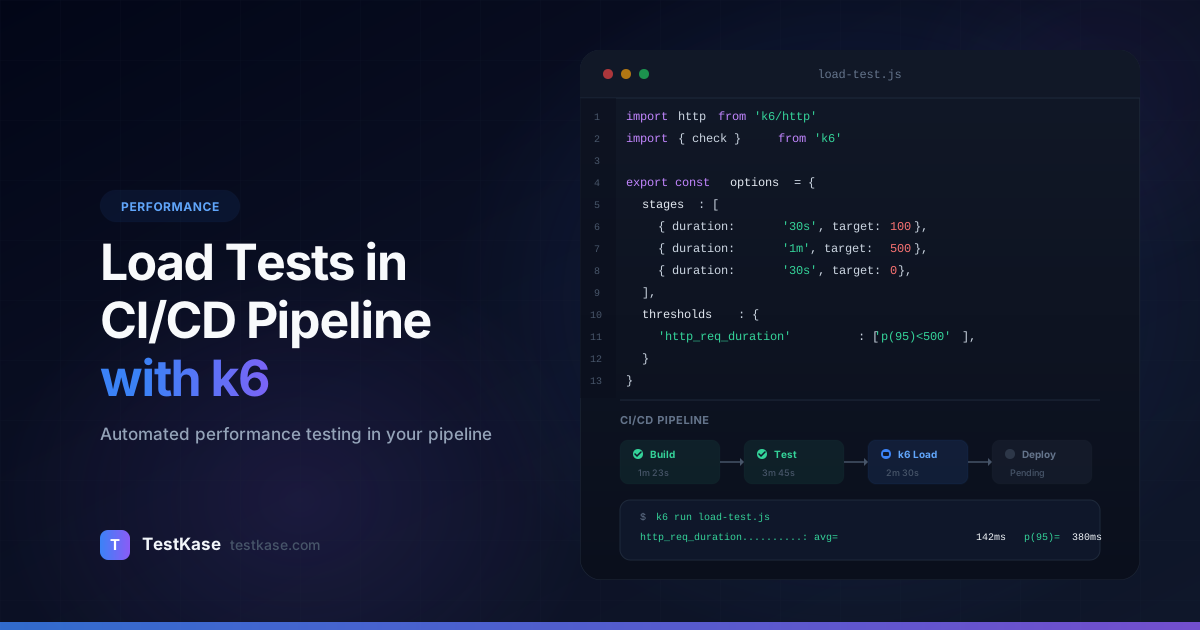
How to Run Load Tests in Your CI/CD Pipeline with k6

How to Run Load Tests in Your CI/CD Pipeline with k6
Most teams treat performance testing as an event — something that happens before a big release, maybe quarterly, often skipped when deadlines are tight. The result? Performance regressions ship to production undetected. A developer adds an N+1 query that doubles response times. Nobody notices until customers complain.
Running load tests in your CI/CD pipeline changes the game. Every pull request, every merge to main — performance is validated automatically. If response times exceed your threshold or error rates spike, the pipeline fails and the change doesn't ship.
k6 is built for exactly this workflow. Created by Grafana Labs, k6 is a modern load testing tool that uses JavaScript for scripting, runs from the command line, and produces machine-readable output that integrates cleanly with CI/CD systems. Unlike GUI-heavy tools that require a dedicated testing server, k6 runs as a single binary — install it, write a script, and run it anywhere.
This guide walks through everything you need: writing k6 scripts, defining thresholds, building realistic scenarios, integrating with GitHub Actions, interpreting results, scaling to large-scale tests, and avoiding the common mistakes that undermine load testing efforts.
What Is k6?
k6 is an open-source load testing tool designed for developer workflows. You write test scripts in JavaScript (technically ES6 modules), define performance thresholds as code, and run tests from the CLI or CI/CD pipeline.
k6 by the numbers
k6 can simulate thousands of virtual users from a single machine — a modern laptop can typically generate 5,000–10,000 concurrent connections. For larger-scale tests, k6 supports distributed execution via Kubernetes or k6 Cloud, scaling to millions of requests per second.
What makes k6 different from tools like JMeter or Gatling:
- JavaScript scripting — No custom DSL or GUI. If you know JavaScript, you can write k6 tests.
- CLI-first — Designed to run in terminals and CI/CD pipelines, not desktop applications.
- Thresholds as code — Define pass/fail criteria directly in your script. No post-test manual analysis needed.
- Low resource footprint — Written in Go, k6 is memory-efficient and fast to start.
- Built-in protocols — HTTP, WebSocket, gRPC, and browser testing are supported natively.
- Extensions ecosystem — k6 supports community extensions (xk6) for databases, Kafka, Redis, and more.
k6 vs JMeter vs Gatling
Choosing between load testing tools depends on your team's workflow:
For teams already working in JavaScript/TypeScript ecosystems with CI/CD pipelines, k6 is the natural choice. Its CLI-first design means there's no impedance mismatch between how you write tests and how they run in automation.
Writing Your First k6 Script
A k6 script has two parts: configuration (the options object) and the test function (the default export). Here's a minimal example:
import http from 'k6/http';
import { check, sleep } from 'k6';

export const options = {
  vus: 10,          // 10 virtual users
  duration: '30s',  // run for 30 seconds
};

export default function () {
  const response = http.get('https://api.staging.example.com/health');

  check(response, {
    'status is 200': (r) => r.status === 200,
    'response time < 500ms': (r) => r.timings.duration < 500,
  });

  sleep(1); // wait 1 second between iterations
}
This script sends GET requests to a health endpoint with 10 virtual users for 30 seconds, checking that each response returns a 200 status in under 500ms.
Run it locally:
k6 run load-test.js
k6 produces a summary showing request count, response time percentiles, error rates, and check pass rates.
Understanding k6 Lifecycle Functions
k6 provides lifecycle hooks that run at specific times during the test. These are essential for setup and teardown operations:
import http from 'k6/http';
import { check, sleep } from 'k6';

export function setup() {
  // Runs once before the test starts
  // Use for authentication, test data creation, etc.
  const loginRes = http.post('https://api.staging.example.com/auth/login', {
    username: 'loadtest-user',
    password: 'test-password',
  });

  const token = loginRes.json('token');
  return { token }; // Passed to default function and teardown
}

export default function (data) {
  const params = {
    headers: { Authorization: `Bearer ${data.token}` },
  };

  const response = http.get('https://api.staging.example.com/api/orders', params);
  check(response, {
    'status is 200': (r) => r.status === 200,
  });

  sleep(1);
}

export function teardown(data) {
  // Runs once after the test ends
  // Use for cleanup — deleting test data, revoking tokens, etc.
  http.post('https://api.staging.example.com/auth/logout', null, {
    headers: { Authorization: `Bearer ${data.token}` },
  });
}
The setup() function runs once, regardless of the number of virtual users. Its return value is passed to every iteration of the default function and to teardown(). This is the right place for authentication, test data seeding, and environment preparation.
Virtual Users, Scenarios, and Stages
Real traffic doesn't arrive at a constant rate. k6 supports multiple patterns for simulating realistic load.
Ramping Virtual Users
Instead of starting with all users at once, ramp up gradually:
export const options = {
  stages: [
    { duration: '2m', target: 50 },   // ramp to 50 users over 2 minutes
    { duration: '5m', target: 50 },   // stay at 50 users for 5 minutes
    { duration: '2m', target: 0 },    // ramp down to 0 users
  ],
};
This pattern — ramp up, hold, ramp down — is the standard load test shape. It avoids cold-start anomalies and lets you observe steady-state performance.
Multiple Scenarios
Real applications have different types of users doing different things. k6 scenarios let you model this:
export const options = {
  scenarios: {
    browse: {
      executor: 'constant-vus',
      vus: 30,
      duration: '5m',
      exec: 'browseProducts',
    },
    purchase: {
      executor: 'ramping-vus',
      startVUs: 0,
      stages: [
        { duration: '2m', target: 10 },
        { duration: '3m', target: 10 },
      ],
      exec: 'completePurchase',
    },
  },
};

export function browseProducts() {
  http.get('https://api.staging.example.com/products');
  sleep(2);
}

export function completePurchase() {
  const payload = JSON.stringify({
    productId: 42,
    quantity: 1,
  });

  http.post('https://api.staging.example.com/orders', payload, {
    headers: { 'Content-Type': 'application/json' },
  });
  sleep(3);
}
This runs two scenarios simultaneously: 30 users browsing products and up to 10 users making purchases — a more realistic traffic distribution than hitting one endpoint.
Advanced Executor Types
k6 offers several executor types beyond constant and ramping VUs:
constant-arrival-rate— Maintains a constant number of requests per second, regardless of response times. Useful for testing how your system behaves under a fixed throughput target.ramping-arrival-rate— Ramps request rate up or down over time. Ideal for finding the breaking point of your system.shared-iterations— Distributes a fixed number of iterations across VUs. Useful when you need exactly N requests total, like processing a batch of test data.per-vu-iterations— Each VU executes a fixed number of iterations. Useful for sequential workflows where each VU represents a user completing a multi-step process.
export const options = {
  scenarios: {
    stress_test: {
      executor: 'ramping-arrival-rate',
      startRate: 10,         // Start with 10 requests per second
      timeUnit: '1s',
      preAllocatedVUs: 50,
      maxVUs: 200,
      stages: [
        { duration: '2m', target: 50 },   // Ramp to 50 rps
        { duration: '5m', target: 100 },  // Ramp to 100 rps
        { duration: '2m', target: 200 },  // Push to 200 rps
        { duration: '1m', target: 0 },    // Wind down
      ],
    },
  },
};
The ramping-arrival-rate executor is particularly powerful for stress testing — it keeps increasing the request rate until your system can't keep up, clearly revealing the throughput ceiling.
Thresholds and Checks
Thresholds are the mechanism that turns a load test into an automated gate. If a threshold fails, k6 exits with a non-zero exit code — which causes your CI pipeline to fail.
export const options = {
  stages: [
    { duration: '2m', target: 100 },
    { duration: '5m', target: 100 },
    { duration: '2m', target: 0 },
  ],
  thresholds: {
    http_req_duration: [
      'p(95) < 500',   // 95% of requests must complete in under 500ms
      'p(99) < 1500',  // 99% of requests must complete in under 1500ms
    ],
    http_req_failed: [
      'rate < 0.01',   // less than 1% of requests can fail
    ],
    checks: [
      'rate > 0.95',   // at least 95% of checks must pass
    ],
  },
};
Set thresholds based on baselines, not guesses
Run your load test three times against a known-good version of your application. Use the p95 response time from those runs as your threshold — plus a 20% buffer for normal variation. This prevents false positives while still catching real regressions.
The difference between checks and thresholds:
- Checks are assertions on individual responses (like unit test assertions). A failed check logs a warning but doesn't stop the test.
- Thresholds are pass/fail criteria for the entire test. A failed threshold exits k6 with a non-zero code and fails the pipeline.
Use both together: checks validate individual responses, thresholds validate overall performance.
Per-Endpoint Thresholds
When different endpoints have different performance expectations, use tagged thresholds:
import http from 'k6/http';
import { check, sleep } from 'k6';

export const options = {
  thresholds: {
    'http_req_duration{endpoint:health}': ['p(95) < 100'],
    'http_req_duration{endpoint:search}': ['p(95) < 800'],
    'http_req_duration{endpoint:checkout}': ['p(95) < 1200'],
  },
};

export default function () {
  const healthRes = http.get('https://api.staging.example.com/health', {
    tags: { endpoint: 'health' },
  });

  const searchRes = http.get('https://api.staging.example.com/search?q=widget', {
    tags: { endpoint: 'search' },
  });

  const checkoutRes = http.post('https://api.staging.example.com/checkout',
    JSON.stringify({ cartId: 'test-123' }),
    {
      headers: { 'Content-Type': 'application/json' },
      tags: { endpoint: 'checkout' },
    }
  );

  sleep(2);
}
This lets you set a strict 100ms threshold for health checks, a moderate 800ms for search, and a more lenient 1200ms for checkout — reflecting the actual performance characteristics of each endpoint.
Running k6 in GitHub Actions
Here's a complete GitHub Actions workflow that runs k6 load tests on every push to the main branch:
name: Load Tests

on:
  push:
    branches: [main]
  pull_request:
    branches: [main]

jobs:
  load-test:
    runs-on: ubuntu-latest
    steps:
      - name: Checkout code
        uses: actions/checkout@v4

      - name: Install k6
        run: |
          sudo gpg -k
          sudo gpg --no-default-keyring --keyring /usr/share/keyrings/k6-archive-keyring.gpg \
            --keyserver hkp://keyserver.ubuntu.com:80 --recv-keys C5AD17C747E3415A3642D57D77C6C491D6AC1D68
          echo "deb [signed-by=/usr/share/keyrings/k6-archive-keyring.gpg] https://dl.k6.io/deb stable main" \
            | sudo tee /etc/apt/sources.list.d/k6.list
          sudo apt-get update
          sudo apt-get install k6

      - name: Run load tests
        run: k6 run tests/load/api-load-test.js
        env:
          K6_BASE_URL: ${{ secrets.STAGING_API_URL }}
          K6_AUTH_TOKEN: ${{ secrets.STAGING_AUTH_TOKEN }}

      - name: Upload results
        if: always()
        uses: actions/upload-artifact@v4
        with:
          name: k6-results
          path: k6-results/
To use environment variables in your k6 script:
const BASE_URL = __ENV.K6_BASE_URL || 'http://localhost:3000';
const AUTH_TOKEN = __ENV.K6_AUTH_TOKEN || '';

export default function () {
  const params = {
    headers: {
      Authorization: `Bearer ${AUTH_TOKEN}`,
    },
  };

  const response = http.get(`${BASE_URL}/api/users`, params);
  check(response, {
    'status is 200': (r) => r.status === 200,
  });

  sleep(1);
}
Docker-Based Execution
If you prefer Docker — or your CI environment doesn't support direct k6 installation:
- name: Run k6 via Docker
  run: |
    docker run --rm \
      -v ${{ github.workspace }}/tests/load:/scripts \
      -e K6_BASE_URL=${{ secrets.STAGING_API_URL }} \
      grafana/k6:latest run /scripts/api-load-test.js
GitLab CI Example
For teams using GitLab, here's the equivalent configuration:
load_test:
  stage: test
  image: grafana/k6:latest
  script:
    - k6 run tests/load/api-load-test.js
  variables:
    K6_BASE_URL: $STAGING_API_URL
    K6_AUTH_TOKEN: $STAGING_AUTH_TOKEN
  artifacts:
    when: always
    paths:
      - k6-results/
  only:
    - main
    - merge_requests
Interpreting k6 Results
k6 outputs a summary table after every run. Here's how to read the key metrics:
http_req_duration..............: avg=245ms  min=12ms  med=198ms  max=4.2s  p(90)=380ms  p(95)=520ms
http_req_failed................: 0.42%   ✓ 84       ✗ 19916
http_reqs......................: 20000   333.33/s
checks.........................: 98.2%   ✓ 19640    ✗ 360
vus............................: 100     min=0      max=100
What to look for:
- p(95) vs. threshold — If your threshold is
p(95) < 500and the result is 520ms, you have a regression. Investigate the slowest endpoints. - http_req_failed — Any rate above 0.5% under normal load deserves investigation. Check if failures are concentrated on specific endpoints.
- max response time — A max of 4.2 seconds when p95 is 520ms suggests occasional extreme outliers. These might be cold starts, garbage collection pauses, or database lock contention.
- http_reqs rate — This is your throughput. If it's lower than expected, your server might be bottlenecking on CPU, memory, or database connections.
Understanding Percentiles
Percentiles are more useful than averages for performance analysis. An average of 245ms could mean all requests took 245ms (consistent), or it could mean 90% took 50ms and 10% took 2 seconds (terrible for those users). Percentiles reveal the distribution:
- p(50) / median — The typical user experience. Half of all requests are faster, half are slower.
- p(90) — The experience for users having a slower-than-average session. 1 in 10 requests is this slow or slower.
- p(95) — The standard SLA metric. Only 5% of requests are slower than this.
- p(99) — The worst-case experience for almost all users. Useful for catching long-tail latency issues.
If your p(50) is 100ms but your p(99) is 5 seconds, you have a tail latency problem that averages would completely hide.
Exporting Results to Grafana
For historical tracking and dashboards, export k6 results to a time-series database:
k6 run --out influxdb=http://influxdb:8086/k6 load-test.js
Or using the newer Prometheus remote write:
K6_PROMETHEUS_RW_SERVER_URL=http://prometheus:9090/api/v1/write \
  k6 run -o experimental-prometheus-rw load-test.js
Connect Grafana to the data source and build dashboards that show performance trends over time. This makes it easy to correlate performance changes with specific deployments and spot gradual degradation before it becomes critical.
JSON Output for Custom Reporting
For teams that want to build custom reporting or integrate with other tools, k6 supports JSON output:
k6 run --out json=results.json load-test.js
You can then parse this file in a CI step to extract specific metrics, post them to Slack, update a dashboard, or store them in a database for trend analysis.
Scaling with k6 Cloud
For tests that exceed what a single machine can generate — or when you need to simulate traffic from multiple geographic locations — k6 Cloud provides managed distributed execution.
# Run the same script on k6 Cloud
k6 cloud load-test.js
k6 Cloud adds:
- Distributed execution from 21+ geographic locations
- Real-time dashboards during test execution
- Historical comparison across test runs
- Automatic result storage without managing InfluxDB or Prometheus
- Team collaboration with shared test results and comments
- Performance trending across builds and releases
For most teams, local or CI-based execution covers 90% of needs. k6 Cloud becomes valuable when you're testing at scale (50,000+ virtual users) or need geographic distribution.
Kubernetes-Based Distributed Testing
For teams that want distributed execution without SaaS, the k6 Kubernetes operator provides an alternative:
apiVersion: k6.io/v1alpha1
kind: TestRun
metadata:
  name: api-load-test
spec:
  parallelism: 4
  script:
    configMap:
      name: k6-test-scripts
      file: api-load-test.js
This distributes your test across 4 pods, each running a portion of the virtual users. The operator aggregates results automatically. It's a good middle ground between single-machine execution and fully managed k6 Cloud.
Common Mistakes with k6 in CI/CD
1. Running load tests against production. Unless you have explicit approval and traffic-shaping controls, never run load tests against production. Use a staging environment that mirrors production's architecture but is isolated from real users.
2. Setting thresholds too tight. CI environments have variable performance — shared runners, noisy neighbors, network fluctuations. Set thresholds with a buffer (20–30% above your staging baseline) to avoid false failures that erode trust in the pipeline.
3. Skipping think time. Without sleep() between requests, each virtual user fires requests as fast as possible. This creates unrealistic load patterns and inflated throughput numbers. Add 1–3 seconds of think time to simulate real user behavior.
4. Testing with too few virtual users. A load test with 5 VUs for 10 seconds proves nothing. Define realistic scenarios based on actual traffic data. If your application serves 500 concurrent users during peak, test with at least 500 VUs for at least 5 minutes.
5. Ignoring the ramp-down phase. If you stop the test abruptly, in-flight requests get terminated and counted as failures — skewing your error rate. Always include a ramp-down stage to let active requests complete gracefully.
6. Not parameterizing test data. Using the same request data for every virtual user creates unrealistic cache hit rates and doesn't test your system's ability to handle diverse inputs. Use k6's SharedArray or CSV data files to vary test data across VUs.
7. Running load tests on every PR. Load tests take time and consume resources. Run lightweight smoke tests (10 VUs, 30 seconds) on PRs and full load tests on merges to main or nightly. This balances feedback speed with resource consumption.
CI runner limits matter
GitHub Actions shared runners have 2 vCPUs and 7GB RAM. A single runner can realistically generate 500–1,000 virtual users. For higher loads, use self-hosted runners, Docker-based execution on beefier machines, or k6 Cloud.
Real-World Load Testing Patterns
Beyond the basics of scripting and thresholds, experienced teams develop patterns for specific testing goals. Here are four patterns that cover the most common performance validation needs.
Pattern 1: Smoke Test (Every PR)
A lightweight performance check that runs in under 60 seconds. It doesn't prove your system handles production load — it proves nothing is catastrophically broken:
export const options = {
  vus: 5,
  duration: '30s',
  thresholds: {
    http_req_duration: ['p(95) < 2000'],  // Very lenient — just catch disasters
    http_req_failed: ['rate < 0.05'],      // Allow up to 5% failure
  },
};
Run this on every pull request. It catches performance disasters — an accidentally introduced infinite loop, a missing database index, a service that doesn't start — without slowing down your PR review cycle.
Pattern 2: Load Test (Merge to Main)
Your standard performance validation, simulating expected production traffic:
export const options = {
  stages: [
    { duration: '2m', target: 100 },  // Ramp to expected peak
    { duration: '5m', target: 100 },  // Sustain peak traffic
    { duration: '2m', target: 0 },    // Ramp down
  ],
  thresholds: {
    http_req_duration: ['p(95) < 500', 'p(99) < 1500'],
    http_req_failed: ['rate < 0.01'],
    checks: ['rate > 0.99'],
  },
};
Run this on every merge to main. The VU count should match your expected concurrent users during peak hours. If your analytics show 100 concurrent users at peak, test with 100 VUs.
Pattern 3: Stress Test (Weekly/Pre-Release)
Push beyond expected load to find the breaking point:
export const options = {
  stages: [
    { duration: '2m', target: 100 },   // Normal load
    { duration: '3m', target: 200 },   // 2x expected
    { duration: '3m', target: 400 },   // 4x expected
    { duration: '3m', target: 600 },   // 6x expected — find the ceiling
    { duration: '5m', target: 0 },     // Recovery phase
  ],
  thresholds: {
    // Thresholds only for normal load phase
    'http_req_duration{phase:normal}': ['p(95) < 500'],
  },
};
The recovery phase is critical — after extreme load, does your system recover to normal performance, or does it remain degraded? Systems that don't recover often have resource leaks (connection pools exhausted, memory not freed, thread pools saturated).
Pattern 4: Soak Test (Nightly/Weekly)
Run moderate load for an extended period to detect slow leaks:
export const options = {
  stages: [
    { duration: '5m', target: 50 },    // Ramp up
    { duration: '4h', target: 50 },    // Sustained moderate load
    { duration: '5m', target: 0 },     // Ramp down
  ],
  thresholds: {
    http_req_duration: ['p(95) < 500'],
    http_req_failed: ['rate < 0.01'],
  },
};
Soak tests catch problems that short tests miss: memory leaks that only manifest after hours of operation, connection pool exhaustion, log file growth that fills disks, and database connection timeouts caused by connection churn. Run these nightly or weekly — they're too long for every commit but essential for production readiness.
Building a Load Testing Culture
Integrating k6 into CI/CD is a technical task. Building a culture where performance is everyone's responsibility is an organizational one. Here are practical steps:
- Make performance visible: Display k6 trend dashboards in a shared location. When the team sees response times creeping up, they act.
- Set performance budgets: Just like bundle size budgets in frontend development, set response time budgets for each endpoint. Document them alongside the API spec.
- Include performance in definition of done: A feature isn't complete until its load test is written and passing in CI.
- Celebrate catches: When a k6 threshold blocks a regression, share it in the team channel. Visibility builds buy-in.
How TestKase Helps Track Performance Test Results
Load tests generate pass/fail results, percentile data, and threshold violations — but those numbers need context. Which API endpoint regressed? Was the threshold breach a fluke or a pattern? Is the performance fix from last sprint still holding?
TestKase lets you create performance test cases that document expected thresholds, link to specific k6 scripts, and track results across CI runs. When a k6 threshold fails in your pipeline, the corresponding test case in TestKase provides the context — which requirement it maps to, what the historical baseline looks like, and who owns the affected service.
By organizing k6 test scenarios in TestKase alongside your functional and regression tests, your team maintains a complete view of application quality — not just whether features work, but whether they perform under load. TestKase's folder structure lets you create dedicated performance testing sections organized by service or endpoint, making it easy to see at a glance which services have load test coverage and which need attention.
Track Load Test Results with TestKaseConclusion
Running load tests in CI/CD isn't a luxury — it's the only reliable way to catch performance regressions before they reach users. k6 makes it practical: write tests in JavaScript, define thresholds as code, and integrate with GitHub Actions in under an hour.
Start with a single critical endpoint. Write a k6 script with realistic stages and strict thresholds. Add it to your pipeline. When it catches its first regression — an innocent-looking code change that doubles response times — you'll understand why performance testing belongs in every build, not just pre-release checkpoints.
The key is starting small and building momentum. A single k6 script with a single threshold on your most critical endpoint provides more value than a grand performance testing plan that never gets implemented. Get that first test green in CI, then expand your coverage one endpoint at a time.
Stay up to date with TestKase
Get the latest articles on test management, QA best practices, and product updates delivered to your inbox.
SubscribeShare this article
Related Articles
Accessibility Testing in CI/CD: Catching WCAG Issues Before They Ship
Three integration patterns, GitHub Actions / GitLab / CircleCI templates, and a 3-quarter rollout playbook to take an engineering team from zero accessibility in CI to block-on-fail.
Read more →Auditing Pages Behind a Login: A Practical Guide to Authenticated Accessibility Scanning
Most accessibility scanners stop at your login page. Here's how to audit the 70% of your app that lives behind authentication — cookie, login form, and header methods compared.
Read more →We Gave Our Test Management Tool an AI Brain. Here's What Happened.
How we built an AI agent that manages test cases, cycles, and reports through conversation — and what we learned about what works and what doesn't.
Read more →