Performance Testing 101: Load, Stress, and Spike Testing Explained

Performance Testing 101: Load, Stress, and Spike Testing Explained
Black Friday 2024 cost retailers an estimated $3.7 billion in lost sales due to site crashes and slowdowns. Most of these failures were not caused by obscure bugs — they were caused by applications that simply could not handle the traffic. The engineering teams behind those sites had functional tests, integration tests, and regression suites. What they did not have — or did not run recently enough — was meaningful performance testing.
Performance issues are uniquely painful because they are invisible under normal conditions. Your application works perfectly with 50 concurrent users. At 500, response times double. At 5,000, the database connection pool is exhausted and the entire system locks up. These failures are not theoretical — they happen every time an unprepared system faces real-world demand.
The good news? Performance testing is not as complicated as it sounds. Once you understand the different types — load, stress, spike, soak, and volume testing — and know which metrics to watch, you can build a performance testing practice that prevents these disasters before they happen.
According to Akamai's 2024 web performance report, 53% of mobile users abandon a page that takes longer than 3 seconds to load. For e-commerce sites, every 100ms improvement in load time increases conversion rates by an average of 1.1%. These numbers make the business case for performance testing straightforward — it directly protects revenue.
Why Performance Testing Matters
Functional tests answer the question "does it work?" Performance tests answer a different question: "does it work fast enough, for enough people, for long enough?"
The speed-revenue connection
Google found that a 500ms increase in page load time reduced traffic by 20%. Amazon calculated that every 100ms of latency cost them 1% in sales. Performance isn't a nice-to-have — it's directly tied to revenue.
Performance testing reveals problems that no other type of testing can find:
- Memory leaks — The application works fine for an hour, then crashes after running for 8 hours under load
- Connection pool exhaustion — 100 users work fine, but the 101st gets a timeout because the database can't open more connections
- Thread starvation — Asynchronous tasks pile up until the thread pool is saturated
- Cache thrashing — Under high load, the cache can't keep up and every request hits the database directly
- Network bottlenecks — The application server is fine, but the load balancer or DNS can't handle the throughput
- Garbage collection pauses — In JVM-based applications, GC pauses under memory pressure can cause multi-second response spikes
- Lock contention — Database row locks or application-level mutexes create serialization points that destroy throughput
A real-world example illustrates the stakes. In 2023, a major airline's booking system went down during a fare sale, resulting in $14 million in lost bookings over 4 hours. The root cause was a database connection pool limited to 200 connections — sufficient for normal traffic but catastrophically inadequate for the 10x surge the sale generated. A single stress test would have revealed this limit.
The Five Types of Performance Testing
Each type of performance test answers a specific question. You will rarely need all five for every release, but understanding each one helps you pick the right test for the situation.
Load Testing
Load testing simulates the expected number of concurrent users performing typical actions. It is the most common type of performance test and the one you should run most frequently.
The goal is not to break the system — it is to verify that the system meets performance requirements under expected load. If your application serves 2,000 concurrent users during peak hours, your load test should simulate 2,000 users doing realistic things: browsing, searching, adding items to carts, checking out.
A load test is successful when response times, throughput, and error rates all stay within acceptable thresholds throughout the test duration.
Here is a practical k6 load test for an e-commerce API:
import http from 'k6/http';
import { check, sleep } from 'k6';

export const options = {
  stages: [
    { duration: '2m', target: 500 },   // Ramp up to 500 users over 2 min
    { duration: '10m', target: 2000 },  // Ramp to expected peak over 10 min
    { duration: '15m', target: 2000 },  // Hold at peak for 15 min
    { duration: '5m', target: 0 },      // Ramp down
  ],
  thresholds: {
    http_req_duration: ['p(95)<2000'],   // 95% of requests under 2 seconds
    http_req_failed: ['rate<0.01'],       // Less than 1% error rate
    http_reqs: ['rate>100'],              // At least 100 requests per second
  },
};

export default function () {
  // Simulate realistic user journey
  const browseRes = http.get('https://api.example.com/products');
  check(browseRes, {
    'browse returns 200': (r) => r.status === 200,
    'browse under 1s': (r) => r.timings.duration < 1000,
  });
  sleep(Math.random() * 3 + 1); // 1-4 seconds of "thinking time"

  const searchRes = http.get('https://api.example.com/search?q=laptop');
  check(searchRes, {
    'search returns 200': (r) => r.status === 200,
  });
  sleep(Math.random() * 2 + 1);

  // 10% of users add to cart (realistic distribution)
  if (Math.random() < 0.10) {
    const cartRes = http.post(
      'https://api.example.com/cart',
      JSON.stringify({ productId: 'prod-123', quantity: 1 }),
      { headers: { 'Content-Type': 'application/json' } }
    );
    check(cartRes, {
      'cart add returns 200': (r) => r.status === 200,
    });
  }
}
Stress Testing
Stress testing pushes the system beyond its expected capacity to find the breaking point. You gradually increase load — 1,000 users, 2,000, 4,000, 8,000 — until the system fails or becomes unusably slow.
The goal is not to prove the system can handle the load. It is to answer: "What happens when it can't?" Does the system degrade gracefully — slowing down but staying functional — or does it crash catastrophically, taking the database with it?
Stress testing also reveals the system's recovery behavior. After the overload subsides, does the system return to normal, or does it stay in a degraded state until someone restarts it?
// k6 stress test — progressively increase beyond expected load
export const options = {
  stages: [
    { duration: '2m', target: 1000 },   // Expected load
    { duration: '5m', target: 1000 },   // Hold at expected load
    { duration: '5m', target: 3000 },   // 1.5x expected load
    { duration: '5m', target: 3000 },   // Hold
    { duration: '5m', target: 6000 },   // 3x expected load
    { duration: '5m', target: 6000 },   // Hold — system likely degrading
    { duration: '5m', target: 10000 },  // 5x expected load — finding the break
    { duration: '5m', target: 10000 },  // Hold at breaking point
    { duration: '10m', target: 0 },     // Ramp down — observe recovery
  ],
};
When analyzing stress test results, look for these patterns:
- Graceful degradation — Response times increase linearly with load, error rate stays low. This is the best outcome — the system slows down but remains functional.
- Cliff edge — Performance is stable up to a certain point, then collapses suddenly. This indicates a hard resource limit (connection pool, thread pool, memory) that gets exhausted.
- Cascading failure — One component fails, causing other components to fail. For example, the database becomes unresponsive, causing the application server's connection pool to fill up, causing the load balancer to mark all backends as unhealthy.
- Zombie state — The system fails under stress and does not recover when load decreases. This is the worst outcome — it means you need manual intervention (restart) to restore service.
Spike Testing
Spike testing simulates a sudden, dramatic increase in traffic — like a product going viral on social media, a flash sale starting, or a push notification being sent to a million users simultaneously.
Unlike stress testing, which ramps up gradually, spike testing jumps from normal load to extreme load instantly. The pattern looks like: 200 users to 10,000 users in 30 seconds, then back to 200 users. This tests the system's ability to auto-scale, handle connection bursts, and recover quickly.
// k6 spike test — sudden traffic surge
export const options = {
  stages: [
    { duration: '5m', target: 200 },    // Normal load
    { duration: '30s', target: 10000 },  // Spike — 50x increase in 30 seconds
    { duration: '3m', target: 10000 },   // Hold at spike level
    { duration: '30s', target: 200 },    // Traffic drops back to normal
    { duration: '5m', target: 200 },     // Recovery period — watch metrics
  ],
};
Key observations during spike tests:
- Auto-scaling latency — How long does your cloud infrastructure take to scale up? AWS Auto Scaling groups typically take 2-5 minutes. If the spike lasts 30 seconds, auto-scaling will not help.
- Connection queuing — When more connections arrive than the server can handle simultaneously, they queue. How deep does the queue get, and do queued requests timeout?
- Recovery time — After the spike subsides, how long until response times return to pre-spike levels? This is your recovery SLA.
Soak Testing (Endurance Testing)
Soak testing runs a moderate load for an extended period — typically 4 to 24 hours. The purpose is to find problems that only appear over time: memory leaks, connection leaks, log file growth, disk space exhaustion, and gradual performance degradation.
A system that performs perfectly for 30 minutes might slow to a crawl after 6 hours because of a memory leak that adds 50MB per hour. Soak tests are the only way to catch these creeping failures.
// k6 soak test — moderate load over extended period
export const options = {
  stages: [
    { duration: '5m', target: 500 },    // Ramp up
    { duration: '8h', target: 500 },     // Hold at moderate load for 8 hours
    { duration: '5m', target: 0 },       // Ramp down
  ],
  thresholds: {
    // Same thresholds should hold at hour 1 and hour 8
    http_req_duration: ['p(95)<2000'],
    http_req_failed: ['rate<0.01'],
  },
};
When analyzing soak test results, plot these metrics over time:
- Response time p95 — Should remain flat. An upward trend indicates degradation.
- Memory usage — Should remain stable. Gradual increase indicates a memory leak.
- Active database connections — Should remain bounded. Growth indicates connection leaks.
- Disk usage — Log files and temp files can fill disks over long runs.
- GC pause duration (JVM) — Should remain consistent. Increasing pause times indicate memory pressure.
A SaaS company running Node.js discovered through soak testing that their application's memory grew by 120MB per hour due to a closure that held references to HTTP request objects. At moderate load, the process would hit the Node.js default heap limit (1.5GB) after roughly 12 hours, triggering an out-of-memory crash. A 30-minute load test would never have caught this.
Volume Testing
Volume testing focuses on how the system handles large amounts of data. Can the search endpoint still respond in under 2 seconds when the database has 50 million records? Does the export feature work when generating a 500MB CSV file? Volume testing answers these questions.
Volume testing requires a different setup than other performance tests. Instead of varying the number of concurrent users, you vary the data volume:
-- Seed a test database with realistic volume
-- Products table: 5 million records
INSERT INTO products (name, description, price, category_id, created_at)
SELECT
  'Product ' || generate_series,
  repeat('Description text ', 10),
  (random() * 1000)::numeric(10,2),
  (random() * 100 + 1)::int,
  NOW() - (random() * 365 || ' days')::interval
FROM generate_series(1, 5000000);

-- Orders table: 50 million records
INSERT INTO orders (user_id, product_id, amount, status, created_at)
SELECT
  (random() * 100000 + 1)::int,
  (random() * 5000000 + 1)::int,
  (random() * 500)::numeric(10,2),
  (ARRAY['completed', 'pending', 'cancelled'])[floor(random() * 3 + 1)],
  NOW() - (random() * 730 || ' days')::interval
FROM generate_series(1, 50000000);
Then run your standard test scenarios against this populated database and compare query performance to your baseline.
Key Metrics to Track
Raw test results are meaningless without the right metrics. Focus on these four primary metrics plus supporting system metrics.
Response Time (Latency) — How long it takes the server to respond. Track the average, but pay close attention to the 95th and 99th percentiles (p95 and p99). An average of 200ms means nothing if 5% of your users experience 8-second responses.
Focus on percentiles, not averages
Average response time hides outliers. If 95 requests take 100ms and 5 requests take 10 seconds, the average is 595ms — which looks acceptable but masks a terrible experience for 5% of your users. Always report p95 and p99 alongside the average.
Throughput — The number of requests the system processes per second (RPS). This tells you the system's capacity. If you need to handle 1,000 RPS and your system tops out at 800, you have a capacity gap.
Error Rate — The percentage of requests that return errors (5xx status codes, timeouts, connection refused). Under load testing, aim for an error rate below 1%. Under stress testing, track how quickly the error rate increases as load grows.
Concurrency — The number of simultaneous connections the system is handling at any given moment. This differs from throughput — you might have 500 concurrent connections but only 200 RPS if each request takes 2.5 seconds.
System-Level Metrics
Application-level metrics tell you what is slow. System-level metrics tell you why:
Correlating application metrics with system metrics reveals the root cause of performance issues. If p95 latency spikes when CPU hits 90%, you have a compute bottleneck. If it spikes when disk I/O wait exceeds 30%, your database needs faster storage or better query optimization.
Tools Overview
Several mature tools exist for performance testing. Your choice depends on your team's programming experience and infrastructure.
For teams just starting out, k6 and Locust offer the lowest barrier to entry. JMeter remains popular for teams that prefer a GUI-based approach. We cover k6 in depth in our guide on running load tests in CI/CD pipelines.
Quick-Start Example with Locust
For Python-oriented teams, here is a Locust equivalent of the load test shown earlier:
from locust import HttpUser, task, between

class ECommerceUser(HttpUser):
    wait_time = between(1, 4)  # Realistic think time

    @task(4)  # 40% of traffic
    def browse_products(self):
        self.client.get("/products")

    @task(3)  # 30% of traffic
    def search(self):
        self.client.get("/search?q=laptop")

    @task(2)  # 20% of traffic
    def view_product(self):
        self.client.get("/products/prod-123")

    @task(1)  # 10% of traffic
    def add_to_cart(self):
        self.client.post("/cart", json={
            "productId": "prod-123",
            "quantity": 1
        })
Run it with: locust -f loadtest.py --host=https://api.example.com --users=2000 --spawn-rate=100
Designing Effective Performance Tests
A performance test is only as good as its scenario design. Simulating 10,000 users all hitting the same endpoint simultaneously does not reflect reality — and produces misleading results.
Model real user behavior. Analyze your production traffic to understand the distribution of actions. Maybe 40% of traffic is browsing, 30% is searching, 20% is viewing product details, and 10% is checking out. Your performance test should mirror this distribution. Most analytics tools (Google Analytics, Datadog, New Relic) can provide this breakdown.
Include think time. Real users do not fire requests as fast as possible. They read pages, fill out forms, and hesitate before clicking "Buy." Add realistic delays (1-5 seconds) between actions to simulate human behavior. Without think time, your test generates unrealistically high throughput per user and stresses the system differently than real traffic would.
Ramp up gradually. Do not start with 5,000 users. Ramp from 0 to 5,000 over 5-10 minutes. This lets you see how the system behaves as load increases and makes it easier to identify the point where performance starts degrading.
Use realistic data. If your search endpoint performs differently for "TV" (10 results) versus "shirt" (50,000 results), your test data should include a variety of search terms that reflect production query patterns. Create a data file with realistic inputs:
// k6 — load test data from CSV
import papaparse from 'https://jslib.k6.io/papaparse/5.1.1/index.js';
import { SharedArray } from 'k6/data';

const searchTerms = new SharedArray('search terms', function () {
  return papaparse.parse(open('./search-terms.csv'), { header: true }).data;
});

export default function () {
  const term = searchTerms[Math.floor(Math.random() * searchTerms.length)];
  http.get(`https://api.example.com/search?q=${term.query}`);
}
Test authenticated flows. Many performance tests only hit public endpoints. In production, most traffic comes from authenticated users. Include login flows and token management in your performance tests to simulate realistic auth overhead.
Setting Baselines and Performance Budgets
Before you can say "performance regressed," you need a baseline — a known-good measurement to compare against.
Run your performance tests against a stable release and record the results. This becomes your baseline. Future tests compare against it:
- Response time p95 increased from 320ms to 480ms — investigate.
- Throughput dropped from 1,200 RPS to 900 RPS — investigate.
- Error rate went from 0.1% to 2.3% — definitely investigate.
Performance budgets formalize this. Set explicit thresholds and fail the test if they are exceeded:
- Homepage loads in under 2 seconds at p95
- API responses complete in under 500ms at p99
- Error rate stays below 0.5% at expected load
- System handles 150% of expected peak traffic without degradation
Integrating Performance Tests into CI/CD
Performance tests should not be a quarterly event — they should run in your CI/CD pipeline. Here is a GitHub Actions workflow that runs a lightweight load test on every deployment to staging:
name: Performance Check
on:
  deployment_status:
    types: [success]

jobs:
  load-test:
    if: github.event.deployment_status.state == 'success'
    runs-on: ubuntu-latest
    steps:
      - uses: actions/checkout@v4

      - name: Install k6
        run: |
          sudo gpg -k
          sudo gpg --no-default-keyring --keyring /usr/share/keyrings/k6-archive-keyring.gpg \
            --keyserver hkp://keyserver.ubuntu.com:80 --recv-keys C5AD17C747E3415A3642D57D77C6C491D6AC1D68
          echo "deb [signed-by=/usr/share/keyrings/k6-archive-keyring.gpg] https://dl.k6.io/deb stable main" \
            | sudo tee /etc/apt/sources.list.d/k6.list
          sudo apt-get update && sudo apt-get install k6

      - name: Run load test
        run: k6 run --out json=results.json tests/performance/load-test.js
        env:
          K6_TARGET_URL: ${{ github.event.deployment_status.target_url }}

      - name: Check thresholds
        run: |
          # k6 exits with code 99 if thresholds are breached
          if [ $? -eq 99 ]; then
            echo "Performance thresholds breached!"
            exit 1
          fi

      - name: Upload results
        if: always()
        uses: actions/upload-artifact@v4
        with:
          name: perf-results
          path: results.json
Keep CI performance tests lightweight — 2-5 minutes, not 30. Use a reduced user count (10-20% of full load test) and shorter duration. The goal is to catch regressions, not to simulate full production load on every commit.
Interpreting Results: A Practical Guide
Raw numbers from a performance test are useless without context. Here is how to interpret results and turn them into action.
Compare against your baseline, not against arbitrary numbers. A p95 of 800ms is neither good nor bad in isolation. If your baseline is 400ms, it is a 100% regression. If your baseline is 750ms, it is a 7% regression that might be within normal variance.
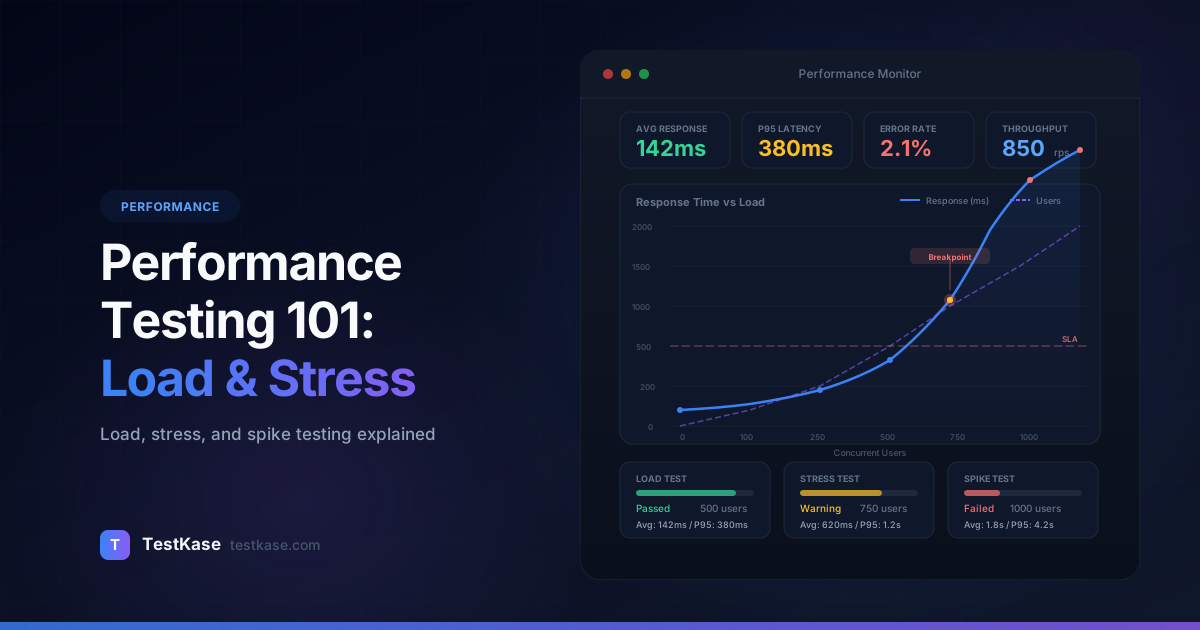
Look for inflection points. Plot response time against concurrent users. The graph typically shows three phases:
- Linear — Response time stays flat as users increase. The system has spare capacity.
- Saturation — Response time starts climbing. The system is approaching its limit.
- Collapse — Response time spikes or requests start failing. The system has exceeded its capacity.
The inflection point between phases 2 and 3 is your effective maximum capacity. Plan for this number, not the theoretical maximum.
Check resource utilization at peak load. If your application server's CPU is at 30% when throughput tops out, the bottleneck is not CPU — it is something else (database, network, connection pool). Identifying the constrained resource tells you where to invest in scaling.
Common Mistakes in Performance Testing
1. Testing in an environment that does not match production. A performance test on a 2-core development server tells you nothing about how your 16-core production cluster will perform. Match the environment as closely as possible — or at minimum, understand the scaling factor and document it.
2. Ignoring warm-up effects. The first few minutes of a test often show inflated response times because caches are cold, JIT compilers have not optimized hot paths, and connection pools have not filled. Exclude the warm-up period from your metrics or add an explicit ramp-up phase.
3. Running tests from a single machine. If your load generator machine runs out of CPU or network bandwidth, you are testing the machine's limits, not the server's. Use distributed load generation for high-concurrency tests. Both k6 and Locust support distributed execution:
# k6 distributed execution
k6 run --execution-segment=0:1/3 script.js  # Machine 1
k6 run --execution-segment=1/3:2/3 script.js  # Machine 2
k6 run --execution-segment=2/3:1 script.js  # Machine 3
4. Not testing with production-like data volumes. A query that takes 10ms against 1,000 rows might take 30 seconds against 10 million rows. Seed your test environment with realistic data volumes. Database query performance is a function of data volume, indexing, and query plan — all of which change with scale.
5. Testing once and calling it done. Performance characteristics change with every deployment. Integrate performance tests into your CI/CD pipeline and run them on every significant change — not just before major releases.
6. Ignoring client-side performance. Server response time is only part of the user experience. Time to First Byte (TTFB), Largest Contentful Paint (LCP), Cumulative Layout Shift (CLS), and Total Blocking Time (TBT) all affect perceived performance. Use Lighthouse or WebPageTest alongside server-side load tests.
7. Not testing failure modes. What happens when a downstream service is unavailable? Does your application degrade gracefully or cascade fail? Add chaos engineering scenarios to your performance test suite — introduce network partitions, kill database replicas, and throttle I/O.
How TestKase Supports Performance Testing Workflows
Performance testing generates a wealth of data — response times, throughput measurements, error rates, and threshold violations. But raw numbers only matter when connected to decisions. Which tests ran? Which thresholds were breached? How do results compare to the last release?
TestKase helps you organize performance test scenarios alongside your functional and regression tests. You can create dedicated test suites for each performance test type — load, stress, spike — and track results across runs. When a performance threshold is breached, you can link the failure directly to the test case, requirement, or user story it affects.
By maintaining a structured record of performance baselines and test results in TestKase, your team builds an institutional memory of how the application performs over time — making it far easier to spot regressions and justify infrastructure investments. When the engineering team requests additional server capacity, they can point to concrete performance data in TestKase rather than anecdotal "it feels slow" reports.
TestKase's test cycle feature lets you include performance test scenarios in your release cycles. This ensures performance testing is treated as a first-class testing activity, not an afterthought that gets skipped when deadlines are tight.
Track Performance Test Results with TestKaseConclusion
Performance testing is not optional — it is the only way to know whether your application will survive real-world traffic. Start with load tests that simulate expected usage, then expand to stress and spike tests for risk scenarios. Track p95 response times, throughput, and error rates. Set baselines, define budgets, and automate the whole thing in your CI/CD pipeline.
The cost of performance testing is measured in hours. The cost of not testing is measured in lost customers, lost revenue, and emergency 3 AM incident calls. Start with a single k6 load test against your most critical endpoint, establish your baseline, and build from there. Within a quarter, you will have a performance testing practice that catches regressions before your users do.
Stay up to date with TestKase
Get the latest articles on test management, QA best practices, and product updates delivered to your inbox.
SubscribeShare this article
Related Articles
Critical, Serious, Moderate, Minor: How to Triage Accessibility Issues by Severity
A practical triage policy template — SLAs per severity, ownership across design / engineering / content / QA, and how to share findings cross-team without forwarding PDFs.
Read more →Why Single-Page Accessibility Scans Miss Real Bugs (and What Multi-Page Audits Catch)
Single-URL accessibility scanners miss six entire categories of WCAG violations. Here's what falls through the gap, and how flow-aware audits catch the issues your users actually hit.
Read more →Accessibility Testing in CI/CD: Catching WCAG Issues Before They Ship
Three integration patterns, GitHub Actions / GitLab / CircleCI templates, and a 3-quarter rollout playbook to take an engineering team from zero accessibility in CI to block-on-fail.
Read more →