Color Contrast: The #1 Accessibility Violation (and How to Fix It in 30 Minutes)

Color Contrast: The #1 Accessibility Violation (and How to Fix It in 30 Minutes)
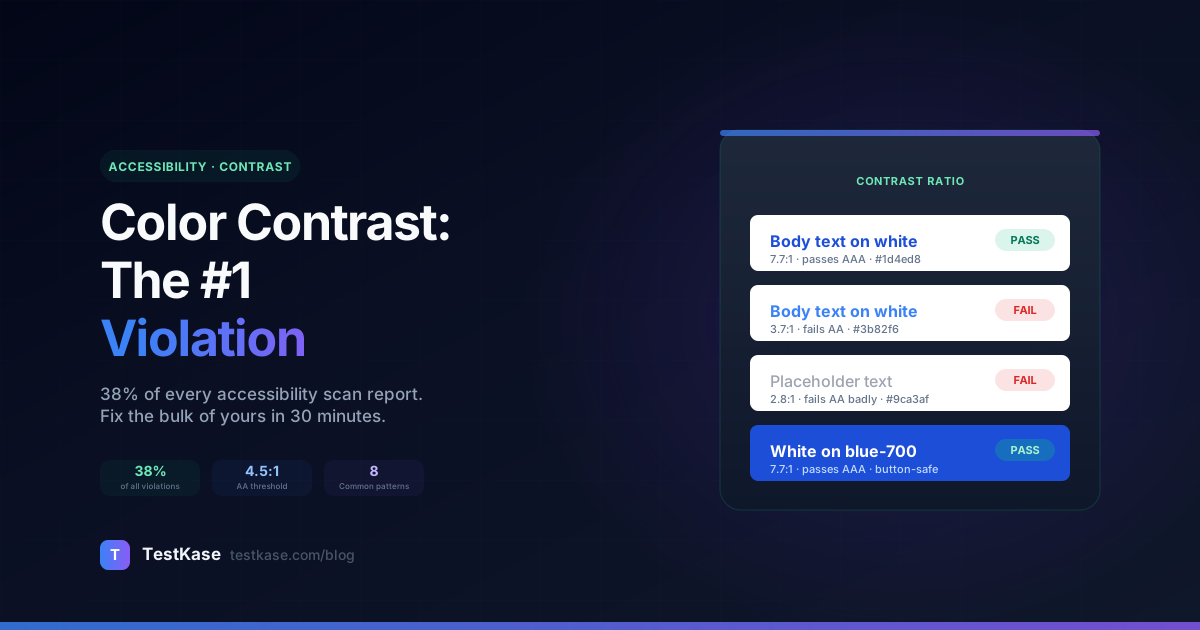
If you've ever run an accessibility scan on a real-world web app, you already know the result: contrast violations dwarf everything else. In our analysis of TestKase scans across hundreds of customer apps, color contrast issues account for roughly 38% of all flagged accessibility violations. That's more than missing alt text, missing ARIA labels, and keyboard issues combined.
The good news: contrast is also the most fixable category. Unlike alt-text quality or focus-order logic, contrast is mathematical. You measure it, you compare it to a threshold, and you adjust. No judgment calls.
This post is the practical playbook for getting contrast right: the math (briefly), the 8 patterns that fail in 90% of apps, the fix recipes for each, and a designer-developer handoff template for when "the brand" pushes back.
What you'll get from this post
A clear understanding of what WCAG actually measures, the eight specific contrast failures you'll see in any audit, fix recipes for each one, and a 30-minute action plan that resolves the bulk of contrast issues on a typical SaaS app.
How WCAG measures contrast
Contrast is the ratio of relative luminance between two colors. At its simplest:
contrast_ratio = (L1 + 0.05) / (L2 + 0.05)
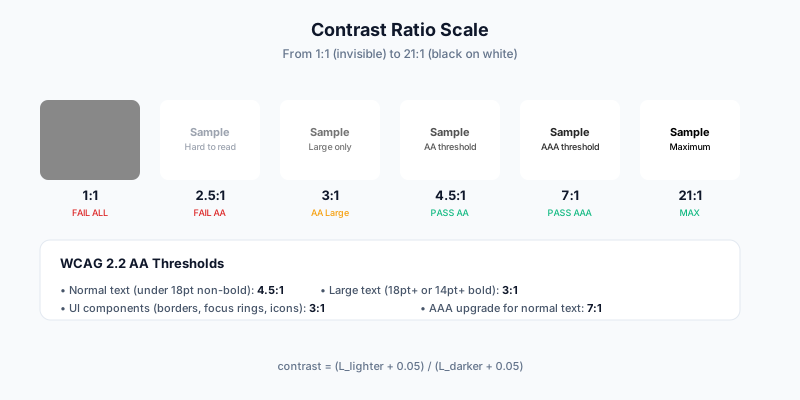
Where L1 is the lighter color's relative luminance and L2 is the darker color's. Both luminance values are between 0 (perfect black) and 1 (perfect white). The contrast ratio runs from 1:1 (identical colors, invisible) to 21:1 (black on white).
The relative luminance itself is computed from the sRGB color values — convert each channel to a linear-light value, then weight by the human eye's color sensitivity:
luminance = 0.2126 × R + 0.7152 × G + 0.0722 × B
(R, G, B are linearized — see the WCAG specification for the exact gamma-correction formula.)
The weighted sum reflects that the human eye is much more sensitive to green than to blue. That's why a deep blue button on a dark background looks crisp to designers but fails contrast — the blue component contributes almost nothing to perceived brightness.
You don't need to compute this by hand. Every browser DevTools panel and every accessibility scanner shows the ratio for any color pair. But knowing the formula explains why certain colors fail and others don't.
The thresholds
WCAG 2.2 sets four contrast thresholds:
| Threshold | Ratio | Applies to | Notes | |---|---|---|---| | AA — Normal text | 4.5:1 | Body text, UI labels, anything under 18pt non-bold or under 14pt bold | The default for almost all WCAG conformance work | | AA — Large text | 3:1 | ≥18pt non-bold or ≥14pt bold | Relaxed because larger glyphs are easier to perceive | | AA — UI components | 3:1 | Icon outlines, focus rings, form-field borders, status indicators | This is WCAG 1.4.11 — distinct from text contrast | | AAA — Normal text | 7:1 | Stricter — used for high-bar compliance programs | Most brand palettes can't meet this universally |
Note the difference between text contrast (1.4.3) and UI contrast (1.4.11). A button's border needs 3:1 against the background; the button's text needs 4.5:1 against the button fill.
The 8 patterns that fail in 90% of apps
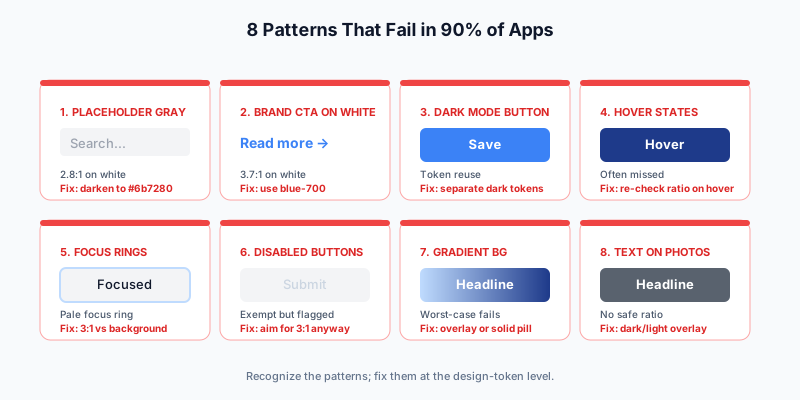
Every app fails contrast somewhere. After auditing hundreds of customer apps, the failures cluster into eight specific patterns. Recognize these, fix the patterns, and you eliminate the bulk of your contrast debt.
Pattern 1 — Light gray placeholder text
The most common failure. Designers default to placeholder color around #9ca3af on white — that's 2.8:1 against white. Fails AA badly.
Fix: Bump placeholder to #6b7280 (4.5:1 against white) or darker. Better: make placeholder slightly lighter than body text but still pass — #52525b reads as "secondary" without failing contrast.
/* Before — 2.8:1 against white, fails AA */
.input::placeholder { color: #9ca3af; }

/* After — 4.6:1 against white, passes AA */
.input::placeholder { color: #6b7280; }
Pattern 2 — Brand-colored CTAs on white
Many brands have a "primary" color that's a bright, saturated blue or green. Those colors look great as backgrounds but fail when used for text on white. A common offender: #3b82f6 (Tailwind's blue-500) is 3.7:1 against white — fails AA for body text.
Fix: Use the darker shade for foreground text. #1d4ed8 (blue-700) is 7.7:1 against white — passes AAA. Reserve the bright primary for backgrounds.
Pattern 3 — Dark mode buttons
Dark mode has its own contrast trap: a primary CTA that uses the same brand color across light and dark. On dark backgrounds, the text on the button needs to contrast with the button fill, not with the page background.
Common failure: bg: #1d4ed8 (dark blue) with color: #ffffff looks fine in light mode (white on dark blue = 7.4:1) but in dark mode, designers sometimes invert to bg: #3b82f6 (lighter blue) keeping color: #ffffff — that's 4.6:1, passes but barely. Worse: dark blue text on a light blue button fill drops to 1.6:1.
Fix: Build a separate dark-mode color token system. Don't try to use the same hex codes across themes.
Pattern 4 — Hover states
Hover states are the most-overlooked contrast failure. The base button passes at 4.6:1, but on hover it darkens to a state that suddenly fails 3:1 against the page background (UI component contrast under 1.4.11).
Fix: When defining hover states, recompute contrast for both the hover fill against page background AND any text-on-hover-state. Both must pass.
Pattern 5 — Focus rings
WCAG 1.4.11 requires UI components — including focus indicators — to have at least 3:1 contrast against adjacent colors. The default browser focus ring is often a thin pale-blue line that fails 3:1 against most page backgrounds.
Fix: Define an explicit focus ring color with 3:1 minimum against your page background. A common pattern: outline: 2px solid #2563eb; outline-offset: 2px; works against light backgrounds. Use #60a5fa against dark.
Pattern 6 — Disabled buttons
The interesting case. WCAG 1.4.3 explicitly exempts "inactive UI components" from contrast requirements. So a disabled button can technically be #cbd5e1 text on #f1f5f9 background (~1.4:1) and still pass.
But scanners flag disabled buttons anyway, and users can't always tell a button is disabled — they try to click and get nothing. The defensible position: aim for 3:1 even on disabled states, and pair with a clear visual cue (reduced opacity, struck-through cursor) so the disabled status is obvious.
Pattern 7 — Gradient backgrounds
Hero sections love gradient backgrounds. Text on top of those gradients fails contrast at one end of the gradient even when it passes at the other.
Fix: Three options:
- Add a semi-transparent dark/light overlay between the gradient and the text so the worst-case point still passes.
- Pin a solid background pill behind the text (
backdrop-filter: blur(8px); background: rgba(0,0,0,0.4);). - Make the gradient less extreme — limit the luminance range so the worst-case ratio is acceptable.
Pattern 8 — Brand colors over photos
Hero images with overlaid headlines fail contrast more often than any other pattern. A photo background contains every color, including ones that match your text exactly.
Fix: Always layer a darkening (or lightening) overlay between the photo and the text. A common pattern: background: linear-gradient(rgba(0,0,0,0.6), rgba(0,0,0,0.4)), url(hero.jpg); puts a 60%-opacity black overlay between the image and any text. White text on top is then almost guaranteed to clear AA.
Common color pairs and their measured ratios
A reference table for the most common fail/pass color combinations. Save this for your team.
The pattern: mid-tone brand colors (-500 shades) almost always fail body-text contrast on white. Use the darker variant (-600, -700, or -800) for text and reserve the mid-tones for backgrounds and decorative elements.
Brand-palette adjustment without breaking the brand
The hardest conversation in any contrast remediation: the design lead says "we can't change the brand colors". The compromise: most brand palettes can pass AA with surprisingly small adjustments — typically 5-10% darkening on the foreground color. The original color is still recognizable; the brand identity survives.
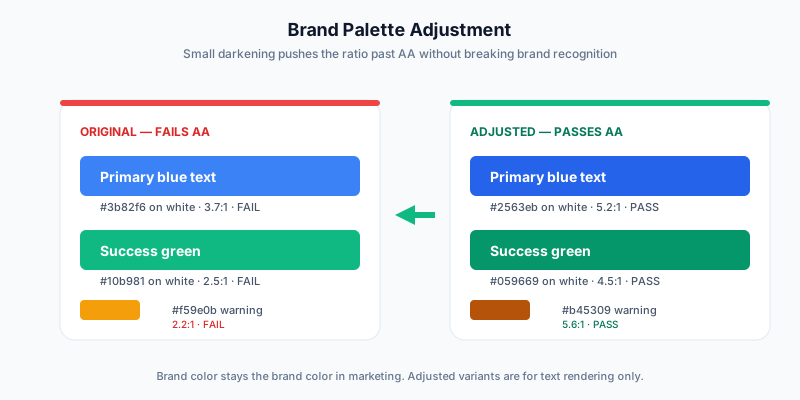
A typical adjustment looks like:
| Original brand color | Used as | Original ratio | Adjusted color | Adjusted ratio | Notes |
|---|---|---|---|---|---|
| #3b82f6 | Body text on white | 3.7:1 | #2563eb | 5.2:1 | 9% luminance drop, near-imperceptible |
| #10b981 | Success label | 2.5:1 | #059669 | 4.5:1 | Slight darkening |
| #f59e0b | Warning text | 2.2:1 | #b45309 | 5.6:1 | Larger shift; warning text needed it |
The key insight: the brand color stays the brand color in marketing photography, hero illustrations, and decorative graphics. The accessibility-corrected variant is for text rendering only. Most users will never notice the difference.
The designer-developer handoff playbook
When contrast pushback comes up, this is the conversation script that works.
Step 1: Bring the data, not the opinion
Don't argue "this fails accessibility". Argue with numbers:
Our current secondary-button text is #6b7280 on #f3f4f6, which is 4.4:1. That's just under WCAG AA's 4.5:1 threshold. To pass, we need either #5b6470 (4.5:1) or moving the background to #f9fafb (4.6:1).
Specificity defuses the brand-vs-compliance frame. There's a number, there's a target, there's an option set.
Step 2: Bring the visual
Mock up the before/after. Most contrast adjustments are visually subtle — a 5-10% luminance shift looks identical to most observers. Showing the side-by-side proves the brand survives.
Step 3: Frame the commercial stakes
ADA digital-accessibility lawsuits have grown 5× over the last 7 years. Most cite specific WCAG criteria; contrast (1.4.3) is the most-cited. Enterprise procurement (Microsoft, Google, IBM) increasingly requires a WCAG 2.2 AA VPAT before signing. A "brand purity" position that fails compliance reviews has a measurable revenue cost.
Step 4: Lock the contract
Once the team agrees, document the accessible color tokens in the design system. Don't leave it as a one-off PR. The next sprint will reintroduce the issue if the source-of-truth color tokens still hold the failing values.
A simple convention:
// design-system/colors.ts
export const colors = {
  // Brand palette — for backgrounds, illustrations, decorative use
  brand: {
    blue: '#3b82f6',
    green: '#10b981',
    amber: '#f59e0b',
  },

  // Text-safe palette — guaranteed to pass AA on white backgrounds
  textOnLight: {
    blue: '#1d4ed8',
    green: '#047857',
    amber: '#92400e',
  },
}
The color names enforce the discipline. A developer reaching for colors.brand.blue for body text is an obvious code-review flag.
Tools to keep around
You don't need anything fancy — three free tools cover 95% of contrast work.
1. Chrome DevTools. Right-click any text → Inspect → in the Styles panel, click the color swatch. DevTools shows the contrast ratio in real-time and suggests the nearest passing color. The single most useful tool for ad-hoc checks.
2. Stark plugin (Figma, Sketch, Adobe XD). Catches contrast failures in the design phase, before code is even written. Shifts the discovery left to the design team.
3. Automated scanner. TestKase's web scanner catches contrast failures at scan time across every URL in the app. The scan run-summary breaks contrast violations out separately from other findings, with the exact failing element highlighted in a screenshot. The Chrome toolkit does the same thing inline in DevTools for the page you're currently looking at — useful when triaging while developing.
A 30-minute contrast triage
If your app has never had a serious contrast pass, here's how to make a measurable dent in 30 minutes:
- Minutes 0-5: Run an automated scan. Filter findings to only "color-contrast" violations. Count: how many critical/serious in this category?
- Minutes 5-15: Sort findings by element type. Most apps cluster: 80% are 3-5 specific design tokens used in many places. Identify those 3-5 tokens.
- Minutes 15-25: Adjust those tokens in the design system. Most fixes are a 1-line color change. Push the PR.
- Minutes 25-30: Re-run the scan. Watch the contrast violation count drop by 70-90%.
The remaining 10-30% are usually special cases — third-party components you can't theme, hero photographs with overlaid text that need more thought, brand-color edge cases. Triage those into the next sprint, not the same 30 minutes.
This works because contrast violations are concentrated, not scattered. A handful of bad design tokens generate the bulk of the report. Fix the tokens; fix the report.
Closing
Color contrast is the most-flagged accessibility issue in any audit, and also the most fixable. The math is closed-form, the failure patterns cluster into eight specific shapes, and the fixes are usually 1-line color-token adjustments.
The strategic move: bake contrast into your design system as a constraint, not as a per-screen fix. Once the design tokens guarantee AA, every component built from those tokens inherits the property. Every regression manifests as a token-override bug, not a "let's audit every page again" problem.
For the per-app scan/audit/fix loop, TestKase's web scanner breaks contrast findings out as a dedicated category with element-level screenshots, and the Chrome toolkit catches contrast issues inline as you develop. The free tier supports unlimited single-URL scans — enough to validate a design-system change end-to-end without a paid plan.
For the broader WCAG context, see our WCAG 2.2 AA checklist. For severity triage of mixed-issue scan results, see triaging accessibility issues by severity.
Run a free contrast scan on your app →Stay up to date with TestKase
Get the latest articles on test management, QA best practices, and product updates delivered to your inbox.
SubscribeShare this article
Related Articles
Critical, Serious, Moderate, Minor: How to Triage Accessibility Issues by Severity
A practical triage policy template — SLAs per severity, ownership across design / engineering / content / QA, and how to share findings cross-team without forwarding PDFs.
Read more →Why Single-Page Accessibility Scans Miss Real Bugs (and What Multi-Page Audits Catch)
Single-URL accessibility scanners miss six entire categories of WCAG violations. Here's what falls through the gap, and how flow-aware audits catch the issues your users actually hit.
Read more →Accessibility Testing in CI/CD: Catching WCAG Issues Before They Ship
Three integration patterns, GitHub Actions / GitLab / CircleCI templates, and a 3-quarter rollout playbook to take an engineering team from zero accessibility in CI to block-on-fail.
Read more →