WCAG 2.2 AA Compliance Checklist for Web Apps in 2026

WCAG 2.2 AA Compliance Checklist for Web Apps in 2026
Most accessibility advice is either too abstract ("make your site accessible to all users") or too tactical ("add alt="" to decorative images"). This guide sits in between: a practical, engineer-grade walkthrough of every WCAG 2.2 Level AA success criterion, what it actually means in code, what your scanner can check for you, and what a human still has to verify.
It's the document I wish I'd had on day one of every accessibility program I've run.
By the end of this post you'll have:
- A flat checklist of all 50 WCAG 2.2 AA success criteria, grouped by the four POUR principles
- A clear split between what's automatable and what isn't
- A 4-week rollout plan that gets a typical web app from "nothing" to "AA on every primary flow"
- Concrete fix recipes for the issues you'll hit most often
Who this is for
This checklist is written for engineering teams shipping a SaaS or B2B web app. The framing is "what do I need to do, in what order, to pass an external audit". If you're building government or healthcare apps, the same checklist applies but you'll layer additional country-specific requirements (Section 508 in the U.S., EN 301 549 in the EU, AODA in Ontario) on top.
The four POUR principles
Every WCAG criterion lives under one of four high-level principles. Memorize these — auditors use them, support tickets use them, and they help you reason about why a criterion exists, not just whether you pass it.
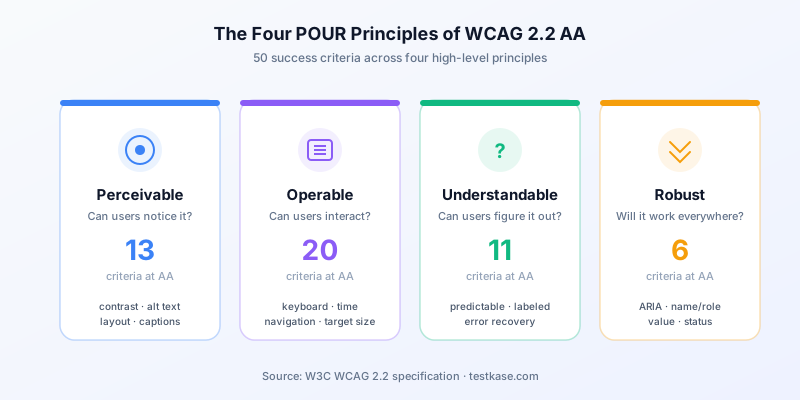
| Principle | Mnemonic | Meaning | AA criteria count | |---|---|---|---| | Perceivable | "Can users notice the content?" | Information must be presentable in ways users can perceive — visually, audibly, or through assistive tech. | 13 | | Operable | "Can users interact with it?" | UI components and navigation must be operable — keyboard works, no time traps, no seizure triggers. | 20 | | Understandable | "Can users figure out what's going on?" | Content and operation must be understandable — predictable, labeled, error-recoverable. | 11 | | Robust | "Will it work everywhere?" | Content must be robust enough to work with current and future user agents — assistive tech, browsers, voice control. | 6 |
Total at Level AA: 50 success criteria across the four principles.
What changed in WCAG 2.2
WCAG 2.2 added 9 new criteria over 2.1. Most modern compliance work targets 2.2 because it's now the de-facto industry standard and what newer regulations point at. Here are the 2.2 additions you actually need to think about:
The biggest practical change: target size 24×24 (2.5.8) and dragging alternatives (2.5.7) are the two most commonly failed 2.2 criteria. If you have any icon-only buttons or drag-and-drop UI, budget time for these.
The complete WCAG 2.2 AA checklist
What follows is every Level A and AA criterion, organized by principle. Each entry shows the success criterion ID, a plain-English description, whether it's automatable, and a concrete how-to-test note.
Perceivable
The four criteria here cover what makes content visible — to eyes, to ears, to assistive tech.
1.1 Text Alternatives
- 1.1.1 Non-text Content (A) — Every image, icon, video thumbnail, and decorative element either has descriptive alt text or is marked
alt=""andaria-hidden="true". Automatable: partially. A scanner can detect missing alt; it can't judge alt quality. A photo of a CEO withalt="image"passes the scanner and fails the spirit of the rule.
1.2 Time-based Media
- 1.2.1 Audio-only and Video-only (A) — Pre-recorded audio gets a transcript; pre-recorded silent video gets a transcript or audio description.
- 1.2.2 Captions (A) — Pre-recorded video with audio has synchronized captions.
- 1.2.3 Audio Description or Media Alternative (A) — Pre-recorded video has audio description OR a full text alternative.
- 1.2.4 Captions (Live) (AA) — Live audio in video has captions (auto-captions are typically acceptable if accuracy is high).
- 1.2.5 Audio Description (AA) — Pre-recorded video has audio description for visual content not in dialogue.
Automatable: no. A scanner can detect that a <video> exists and has no <track> element, but it can't verify caption quality. Manual review.
1.3 Adaptable
- 1.3.1 Info and Relationships (A) — Use semantic HTML. Headings are
<h1>-<h6>, not<div class="heading">. Lists are<ul>/<ol>. Form fields have<label>association. - 1.3.2 Meaningful Sequence (A) — Reading order in DOM matches visual order. Don't use absolute positioning to scramble the source.
- 1.3.3 Sensory Characteristics (A) — Don't write "click the green button" — say "click Submit". Color/shape alone shouldn't carry meaning.
- 1.3.4 Orientation (AA) — Layout works in both portrait and landscape. Don't lock the orientation.
- 1.3.5 Identify Input Purpose (AA) — Use
autocompleteattributes on form fields (autocomplete="email",autocomplete="given-name", etc.).
Automatable: mostly. axe-core catches missing labels (1.3.1), missing autocomplete on common fields (1.3.5), and orientation locks (1.3.4). Sequence and sensory characteristics need human review.
1.4 Distinguishable
- 1.4.1 Use of Color (A) — Don't use color alone to convey meaning. Required-field indicators use both color and an asterisk or text.
- 1.4.2 Audio Control (A) — Audio that auto-plays for >3 seconds has a pause/stop control.
- 1.4.3 Contrast (Minimum) (AA) — Text contrast ratio of at least 4.5:1 (3:1 for large text ≥18pt or ≥14pt bold).
- 1.4.4 Resize Text (AA) — Text can be resized up to 200% without loss of content or function.
- 1.4.5 Images of Text (AA) — Use real text in CSS, not images of text (with exceptions for logos).
- 1.4.10 Reflow (AA) — Content reflows in a 320 CSS px viewport without 2D scrolling, except for tables, maps, and code blocks.
- 1.4.11 Non-text Contrast (AA) — UI components (buttons, form borders, focus indicators) and meaningful graphics have a 3:1 contrast against adjacent colors.
- 1.4.12 Text Spacing (AA) — User can override line-height to 1.5×, paragraph spacing to 2×, letter-spacing to 0.12×, word-spacing to 0.16× without breaking layout.
- 1.4.13 Content on Hover or Focus (AA) — Tooltips and hover-revealed content are dismissible (ESC), hoverable (mouse can move onto them), and persistent (don't disappear on a timeout).
Automatable: well. Contrast (1.4.3, 1.4.11) is the highest-volume catchable issue — typically 30-40% of any scan report. Text resize and reflow are detectable through CSS analysis.
Operable
The 20 criteria here cover how users interact: keyboard, time, navigation, input methods.
2.1 Keyboard Accessible
- 2.1.1 Keyboard (A) — Every function operable through a keyboard.
- 2.1.2 No Keyboard Trap (A) — User can navigate out of any focused element using standard keys (Tab, Esc, arrow keys).
- 2.1.4 Character Key Shortcuts (A) — Single-character shortcuts (
/to focus search) are remappable, turned off, or only active on focus.
Automatable: partially. A scanner can detect missing focus styles and trapped modals; it can't replay every keystroke combination.
2.2 Enough Time
- 2.2.1 Timing Adjustable (A) — Time limits are turn-off-able, adjustable, or extendable. Session timeouts must give a 20-second warning.
- 2.2.2 Pause, Stop, Hide (A) — Moving/blinking/auto-updating content can be paused.
Automatable: poorly. Scanners can detect <marquee> and CSS animation but not whether your toast notifications auto-dismiss too fast.
2.3 Seizures and Physical Reactions
- 2.3.1 Three Flashes or Below Threshold (A) — No content flashes more than 3× per second.
Automatable: yes, with specialized tools (PEAT analyzer).
2.4 Navigable
- 2.4.1 Bypass Blocks (A) — A "Skip to main content" link, or proper landmark structure, lets keyboard users skip the nav.
- 2.4.2 Page Titled (A) — Every page has a unique, descriptive
<title>. - 2.4.3 Focus Order (A) — Tab order matches visual order and follows logical sequence.
- 2.4.4 Link Purpose (In Context) (A) — Each link's purpose is clear from the link text plus its context. Avoid "click here" / "learn more".
- 2.4.5 Multiple Ways (AA) — At least two ways to find a page (sitemap, search, navigation, etc.).
- 2.4.6 Headings and Labels (AA) — Headings and form labels describe their content/purpose.
- 2.4.7 Focus Visible (AA) — Keyboard focus indicator is visible. Don't
outline: nonewithout a replacement. - 2.4.11 Focus Not Obscured (Minimum) (AA) — (NEW IN 2.2) See 2.2 changes section above.
Automatable: well. Bypass blocks, page titles, headings, focus visible — all detectable.
2.5 Input Modalities
- 2.5.1 Pointer Gestures (A) — Multi-point or path-based gestures (pinch, two-finger swipe) have a single-pointer alternative.
- 2.5.2 Pointer Cancellation (A) — Down-events alone don't trigger an action; user can move pointer away to cancel.
- 2.5.3 Label in Name (A) — Visible button labels match their accessible name (e.g., a button labeled "Save" should have
aria-label="Save", notaria-label="Submit form"). - 2.5.4 Motion Actuation (A) — Don't require shaking the device. Always provide a UI alternative.
- 2.5.7 Dragging Movements (AA) — (NEW IN 2.2) Single-pointer alternative for drag operations.
- 2.5.8 Target Size (Minimum) (AA) — (NEW IN 2.2) 24×24 CSS px minimum for interactive targets.
Automatable: partially. Target size (2.5.8) and label-in-name (2.5.3) are detectable; gesture and motion are not.
Understandable
The 11 criteria here cover predictability, language, and helping users recover from errors.
3.1 Readable
- 3.1.1 Language of Page (A) —
<html lang="en">(or your actual language) is set. - 3.1.2 Language of Parts (AA) — Inline language changes use
langattribute on the element.
Automatable: yes.
3.2 Predictable
- 3.2.1 On Focus (A) — Focus alone doesn't trigger a context change (don't auto-submit on tab-out).
- 3.2.2 On Input (A) — Selecting from a
<select>doesn't auto-navigate without warning. - 3.2.3 Consistent Navigation (AA) — Nav menus appear in the same place on every page.
- 3.2.4 Consistent Identification (AA) — Components with the same function are labeled the same way across the site.
- 3.2.6 Consistent Help (A) — (NEW IN 2.2) Help links/widgets appear in the same relative order on each page.
Automatable: poorly. Scanners can detect missing lang and a few patterns, but consistency across pages requires multi-page audit logic — which is exactly what TestKase's Workflow Analyzer handles.
3.3 Input Assistance
- 3.3.1 Error Identification (A) — Errors are identified in text (not just color).
- 3.3.2 Labels or Instructions (A) — Form fields that need user input have labels.
- 3.3.3 Error Suggestion (AA) — Suggest fixes when possible ("Did you mean user@example.com?").
- 3.3.4 Error Prevention (Legal, Financial, Data) (AA) — Important transactions are reversible, checked, or confirmed.
- 3.3.7 Redundant Entry (A) — (NEW IN 2.2) Don't make users re-enter info already in the flow.
- 3.3.8 Accessible Authentication (Minimum) (AA) — (NEW IN 2.2) No cognitive function tests in login.
Automatable: partially. Form labels (3.3.2) and error patterns (3.3.1) are detectable; error suggestion quality is not.
Robust
Just 6 criteria here, but they're the hidden traps.
4.1 Compatible
- 4.1.1 Parsing (A) — DEPRECATED in WCAG 2.2 — was about HTML validity but became redundant with modern parsers.
- 4.1.2 Name, Role, Value (A) — Every UI component exposes its name, role, and value to assistive tech. Custom controls (
<div role="button">) need full ARIA. - 4.1.3 Status Messages (AA) — Status messages (toast notifications, "Saved" indicators) are announced via
role="status"oraria-live.
Automatable: well. axe-core specifically targets 4.1.2 — name/role/value violations are typically the second most common issue type after contrast.
Automated vs manual coverage
The single most important truth in any accessibility program: about 30-40% of WCAG can be reliably caught by automated tools. The rest needs human verification.
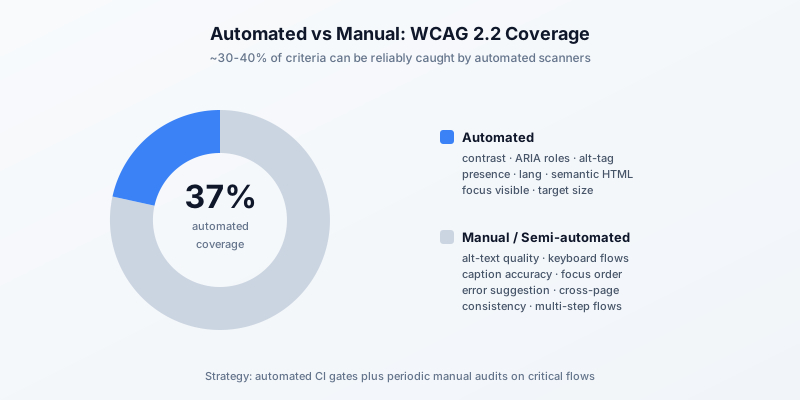
Here's the practical split:
High-confidence automated:
- 1.4.3 Contrast — automated tools measure contrast ratios reliably
- 1.4.11 Non-text Contrast — same
- 4.1.2 Name, Role, Value — axe-core is excellent at catching custom-control ARIA gaps
- 1.1.1 Missing alt — easy to detect (though quality is human-only)
- 1.3.1 Info and Relationships — semantic HTML errors are detectable
- 2.4.7 Focus Visible — CSS analysis catches
outline: nonewithout alternative - 3.1.1 Language of Page — trivial to check
- 4.1.3 Status Messages — detectable when a toast is rendered without
aria-live
Manual or semi-automated:
- 1.1.1 Alt quality (does the alt actually describe the image?)
- 1.2.x Captions and audio descriptions
- 1.3.3 Sensory characteristics
- 2.1.1 Full keyboard operation (must be tested by interaction)
- 2.4.3 Focus order logic
- 2.4.4 Link purpose quality
- 3.2.x Predictability across navigations
- 3.3.4 Error prevention for legal/financial transactions
The right setup is a fast automated scanner in CI plus scheduled manual audits on critical user flows (signup, checkout, primary CRUD). Rolling these into TestKase, the automated bit is /accessibility/web-scanner and the manual bit is /accessibility/workflow-analyzer.
The 4-week rollout plan
If your app has no accessibility program today, here's how to get to baseline AA in a month.
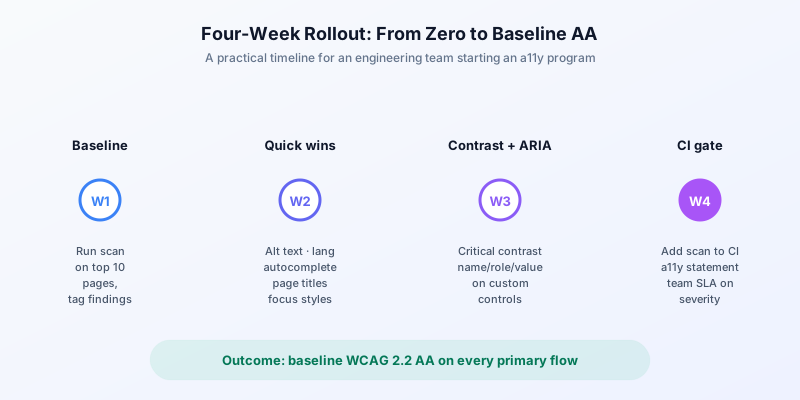
Week 1 — Baseline
Goal: know exactly where you stand.
- Day 1-2: run an automated scan on your top 10 traffic-generating pages. Use TestKase's web scanner, axe-core CLI, or any other WCAG 2.2 AA scanner.
- Day 3-4: tag every issue by severity (critical, serious, moderate, minor). Don't fix anything yet.
- Day 5: produce a baseline report. Include score per page, count of critical issues, and a 3-month estimate based on team capacity.
The baseline is the single most useful artifact in your accessibility program. Reuse it forever.
Week 2 — Quick wins
Goal: knock out the issues that take 30 minutes or less.
- Fix all "missing alt" — even a generic
alt=""for decorative images is the right answer. - Add
<html lang>if missing. - Set
autocompleteattributes on common form fields. - Fix any pages with no
<title>or duplicate titles. - Replace any
outline: nonewith a visible focus indicator.
These five tasks typically resolve 30-50% of all flagged issues for the time it takes to run a single sprint.
Week 3 — Contrast and ARIA
Goal: tackle the two highest-impact issue families.
- Day 1-2: fix all critical contrast failures. Don't try to retrofit your full brand palette — pick the highest-traffic pages and adjust the specific failing pairs (CTA buttons, body text on background, focus rings).
- Day 3-5: fix all
4.1.2 Name, Role, Valuefailures. Most of these are custom-control buttons missingaria-labelorrole. See our color-contrast deep dive for the full playbook.
After this week, your score on baseline pages should jump 15-25 points.
Week 4 — CI gate and team alignment
Goal: stop regression.
- Day 1-2: add the same automated scan to your CI pipeline as a non-blocking comment on PRs. Don't block merges yet — let the team see the output first.
- Day 3: write a one-page accessibility statement for your site. Be honest — list what you've fixed, what's in progress, and how users can report issues.
- Day 4-5: align the team on severity SLAs. Critical = P0, fix this sprint. Serious = P1, fix next sprint. Moderate/minor = P2/P3, fix in scheduled cleanup. See our severity triage post for a full template.
After week 4, you have a baseline AA program with sustainable discipline. From there, the next move is moving the CI gate from comment-only to score-threshold to block-on-critical — see Accessibility Testing in CI/CD for the rollout strategy across the next quarter.
Common false positives to ignore
Not every flag is a real issue. The five most common false positives:
- Decorative SVG icons next to text labels — flagged as "image without alt", but the adjacent text already labels them. Add
aria-hidden="true"to the SVG. <button>with only an icon child — flagged as "button without name", solvable witharia-labelor visually-hidden text. Real fix, not a false positive, but trivial.- CSS
display: noneon visually-hidden text — sometimes flagged because screen readers can't access it. If the text is meant to be visible to screen readers but not visually, use a.sr-onlyclass instead. - Color contrast on disabled buttons — WCAG 1.4.3 explicitly exempts disabled controls. Most scanners flag them anyway.
- Decorative ARIA roles in the wrong place —
role="presentation"on a real<table>flags as semantic violation but is intentional.
Track false positives in a .axe-ignore config so the team isn't re-discussing them every sprint.
When to escalate to AAA
The Level AAA criteria are real, but they're not where most teams should aim. Consider AAA only when:
- A specific user population (e.g., visually-impaired users >X% of your customer base) makes it a market requirement.
- You're in a regulated sector (government accessibility programs sometimes require AAA on specific flows).
- You're competing with a competitor that markets AAA conformance.
Even then, escalate AAA on individual flows, not site-wide. A signup flow at AAA contrast is achievable; your full marketing site at 7:1 contrast across 80 brand-color pairings is not.
Verifying compliance
Once your team has been running an a11y program for a few weeks, you'll need to prove conformance to outsiders — auditors, enterprise procurement, legal counsel.
Three artifacts cover most needs:
- A scan report — run a fresh scan on every primary template right before the audit. Export to PDF. Store the PDF with the audit date and the WCAG version targeted.
- An accessibility statement on your site, naming the conformance level (WCAG 2.2 AA), known limitations, and a contact for accessibility issues.
- A VPAT (Voluntary Product Accessibility Template) if you sell to government or large enterprise. The current standard is VPAT 2.5 covering WCAG 2.2 + Section 508 + EN 301 549.
For TestKase customers, the consolidated report (which combines multiple scans into one PDF — see Comparing & Consolidating Scans) is purpose-built for this — one document, every primary flow, severity-graded findings, ready for an auditor.
Closing
WCAG 2.2 AA is achievable for any web app. The criteria look intimidating in a flat list — 50 success criteria across four principles — but in practice the issues cluster into a small number of patterns: contrast, alt text, ARIA name/role/value, focus visibility, and keyboard operation. Get those five right and you'll pass 80% of audits.
The 4-week plan above gets a typical team from "no program" to "baseline AA with CI gate" in 20 working days. From there, sustained discipline and a quarterly external audit keep you compliant as your product evolves.
If you'd like to skip the tooling decision, TestKase's accessibility scanner covers WCAG 2.0, 2.1, and 2.2 at every level, with auth-aware scanning, multi-page workflow auditing, and CI integration in a single tool. Free tier supports up to 3 users and unlimited single-URL scans.
Start your WCAG 2.2 audit free →Stay up to date with TestKase
Get the latest articles on test management, QA best practices, and product updates delivered to your inbox.
SubscribeShare this article
Related Articles
Critical, Serious, Moderate, Minor: How to Triage Accessibility Issues by Severity
A practical triage policy template — SLAs per severity, ownership across design / engineering / content / QA, and how to share findings cross-team without forwarding PDFs.
Read more →Why Single-Page Accessibility Scans Miss Real Bugs (and What Multi-Page Audits Catch)
Single-URL accessibility scanners miss six entire categories of WCAG violations. Here's what falls through the gap, and how flow-aware audits catch the issues your users actually hit.
Read more →Accessibility Testing in CI/CD: Catching WCAG Issues Before They Ship
Three integration patterns, GitHub Actions / GitLab / CircleCI templates, and a 3-quarter rollout playbook to take an engineering team from zero accessibility in CI to block-on-fail.
Read more →