Filed under mobile testing, Android, iOS, debugging, Appium
20 Test Failures on Real Phones That Aren't Your App's Fault
The test failed, the app is fine. Here are 20 failures we've hit running a fleet of real phones, how to tell it's the device, and what fixes each one.
, 10 min read
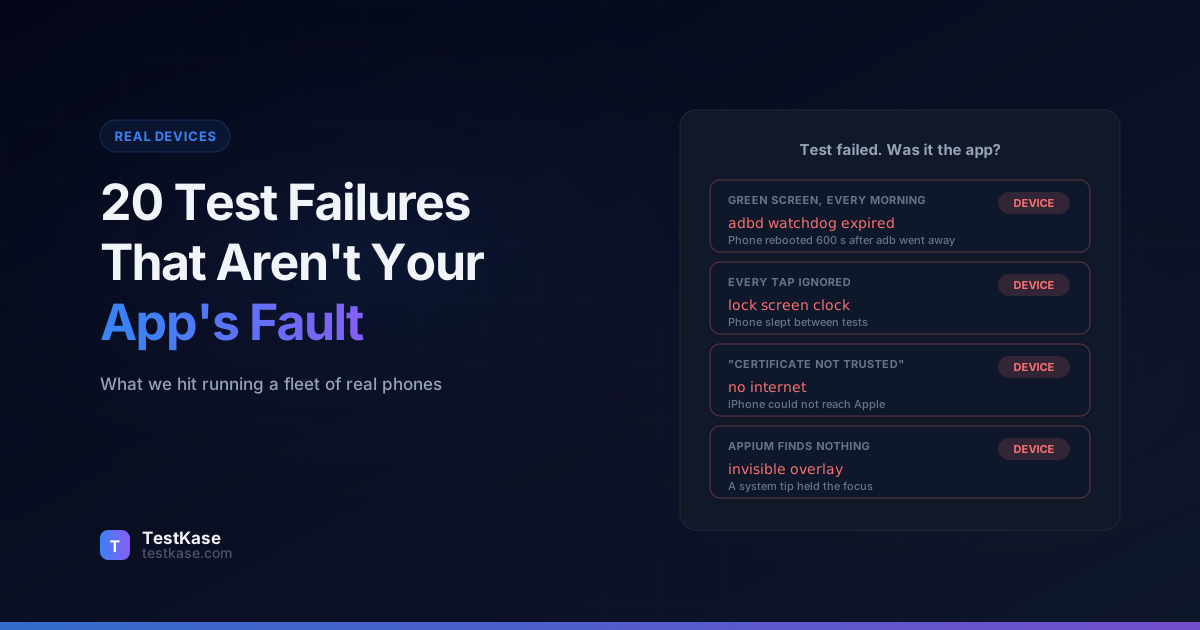
Every morning for a while, one of our Android phones was sitting on a bright green screen.
No app open. No error in the test log. Just Samsung's Download Mode, the screen you'd normally only see if you were flashing new firmware. We blamed the power, then the USB hub, then the phone. Then we timed it. The phone died exactly 600 seconds after the last computer stopped talking to it. Every time.
It was a timer built into Android. More on that below.
We run a fleet of real iPhones and Android phones for testing, and that green screen taught us something we keep relearning. A lot of failed tests have nothing to do with the app being tested. The phone, the OS, the cable or the network got there first.
Here are 20 of those failures, grouped by where they come from. For each one: what you see, what's really happening, and how to tell.
First, a 30-second check before you blame your code
When a test fails on a real phone and passes everywhere else, do these three things before you open the code:
- Look at the screen. Get a screenshot or recording from the moment it failed. Half the failures below are visible in one frame.
- Run a plain browser test on the same phone. If opening a website in Chrome or Safari also fails, the phone is the problem.
- Try one phone of a different make. A Samsung-only or OnePlus-only failure is usually the OS, not you.
The screen wasn't what you thought
1. Perfect video, every tap ignored
The phone shows a clock. Nothing responds. The phone had gone to sleep between tests, and waking it landed on the lock screen or Samsung's always-on clock instead of the home screen. Turning off the PIN doesn't remove that clock. The tricky part: it never happens when you run tests back to back, only after the phone has sat idle. Fix it by dismissing the lock screen after every wake, not only at setup.
2. The screen goes dark after a double tap
Your test double-taps an empty spot, and the phone switches off. Samsung has a setting called "Double tap to turn off screen". Once the screen is off, injected taps can't wake it. Turn that setting off on every test phone. We do it when we set a phone up.
3. Taps land in the wrong place after a pop-up
A permission prompt opened sideways, the phone rotated, and your tool still thinks it's upright. Every tap after that lands somewhere else. Compare the shape of the screenshot with the orientation your tool expects. On iPhone the opposite catches people: a phone lying flat on a desk, or with rotation lock on, won't rotate at all, so a landscape test never sees landscape.
4. Appium can't find anything, but Chrome tests pass
This one cost us a full day. Every lookup in an Android app timed out with "waiting for visibility of element located by accessibilityId". Browser tests on the same phone, in the same hour, passed four out of four. App tests: zero out of four.
The cause was a Samsung tip for "Circle to Search", sitting on top of the screen as an invisible full-screen layer. Appium's Android driver only reads the window that has focus, so to Appium the app simply wasn't there. Pressing Back or Home didn't clear it. One tap did.
To see which window has focus:
adb shell dumpsys window | grep mCurrentFocus
If that names anything other than your app, you've found it.
Android makers do things differently
5. "Clear app data" throws an error on OnePlus
On OnePlus and Oppo phones (ColorOS), clearing an app's data from the command line fails with "SecurityException: CLEAR_APP_USER_DATA". There is no flag that gets around it, and it throws even when the app isn't installed. Uninstall and reinstall the app instead.
6. The command said it worked, and nothing changed
Also ColorOS: a command to disable an app finishes with success, prints a happy message, and leaves the app running. Some permission commands report a refusal and still exit as if everything was fine. The rule we follow now: never trust that a command succeeded. Read the setting back afterwards.
7. Every Android session dies before the test starts
"Appium Settings app is not running after 5000ms." Even a basic Chrome test fails. Appium installs a small helper app on the phone, and from Android 14 that helper needs the location permission. It's off by default, and a factory reset switches it off again. One morning this took out every Android phone we had. Grant the helper the location permission and it comes straight back.
8. The timezone change doesn't stick
You set the phone to Tokyo time and seconds later it's back to local time. Automatic timezone is still on and quietly corrects you. Turn off automatic timezone first, then change it.
9. Your "older Android" phone is suddenly on the newest version
You kept a phone on an older version on purpose. A factory reset throws that choice away, the phone updates itself overnight on Wi-Fi, and Samsung's own updater ignores Google's auto-update switch anyway. There's no going back: Android blocks downgrades, and Apple stops signing old iOS versions soon after a new one ships. Block updates again after every reset, and check the build number before a run so a new OS doesn't look like a new bug.
10. The screen-mirroring tool crashes on one model
Many test tools use scrcpy to show and control Android screens. Version 4.0 crashed on Android 16 for us with "stack corruption detected", so we stayed on 3.3.4. A Galaxy M14 was stranger: it crashed whenever the command that starts scrcpy was longer than about 256 characters. The content didn't matter, only the length. Our first theory (an audio setting) was wrong, which is worth saying because it looked so convincing. If one model fails and others don't, pin the tool version and keep the start command short.
Power, cables and the hardware itself
11. The green screen (or black screen) every morning
Back to the opening. Android has a Test Harness Mode, which test labs use to wipe phones quickly. It stays switched on quietly. In that mode, if no computer is connected over adb (the Android debug connection) for 600 seconds, the phone reboots into its bootloader: green Download Mode on Samsung, a black Fastboot screen on Pixel.
It looks exactly like a power problem. It isn't. A power blip only drops the connection, and the phone dies 10 minutes later. The phone's log says it plainly: "adbd watchdog expired; rebooting". Keep something connected to the phone, and to recover, plug USB in first and then restart.
12. Instant green screen, different cause
Same green screen, but straight away rather than after 10 minutes. A faulty USB cable can look like Samsung's factory service plug, which sends the phone straight into Download Mode. The phone's log stops mid-line with no shutdown, and the problem clusters around the days someone changed cables. Our OnePlus phones never did this. Replace the cable.
13. After a restart, you can't reach the phone
Three things we've seen: Samsung turns wireless debugging off on every restart, a Pixel forgets every trusted computer when you toggle USB debugging, and a restart right after a wipe can leave USB stuck until someone physically unplugs it. Keep a cable as your fallback.
14. Batteries that swell
Phones on charge all day at 100%, sitting at 31 to 34 °C, age fast and can swell. We cap charging at 80% on every phone. Samsung, OnePlus and Pixel all have a setting for it under different names. Two things that look broken but aren't: Pixels occasionally charge to full to recalibrate the battery, which Google documents, and OnePlus takes a few seconds to apply the limit, so one quick reading says the cap failed when it hasn't.
iPhone signing and connection
15. "Certificate not trusted" that means "no internet"
"The application could not be launched because the Developer App Certificate is not trusted." Everyone's first move is to go hunting for a Trust button. On a phone with Developer Mode on and a paid developer account, there often isn't one.
What was really going on: the iPhone has to contact Apple to check the developer certificate, and it had no internet. The phone's own log said so ("An internet connection is required to verify trust of the developer"). Xcode just showed the generic message. Check Wi-Fi first. It's a two-second check that would have saved us an afternoon.
16. Works over USB, ignores everything else
The phone had dropped off Wi-Fi, and Developer Mode had switched itself off. The automation helper (WebDriverAgent, which Appium uses to drive iPhones) couldn't install and kept crashing in a loop, 211 times. Compare with another iPhone on the same Mac. If that one is fine, check Developer Mode and Wi-Fi on the broken one.
17. Airplane Mode left on, and the phone never comes back
Someone tests offline behaviour and leaves Airplane Mode on. It survives a restart, and Apple doesn't let device management tools switch it off remotely. Every remote command waits forever. A person has to pick the phone up. If you test offline flows, end every test by switching Airplane Mode off yourself.
18. Location spoofing or Safari inspection quietly stops working
On iOS 17.4 and later, tools that set a fake GPS location or inspect Safari depend on a background connection service. Ours died after a single "pairing denied" answer from one phone, and because the process kept running, nothing restarted it. It was broken for about six days before anyone noticed. If those features stop working on every iPhone at once, restart that service before you debug anything else.
Emulators and the computer they run on
19. The Android emulator freezes at boot, about one time in three
It hung while connecting to its simulated Wi-Fi radio. The clue is a missing line in the emulator's output: "Successfully initialized netsim WiFi". If that line isn't there, the snapshot is fine and you don't need to rebuild anything. Two of the popular workarounds swap one problem for another: one breaks Bluetooth ("Bluetooth keeps stopping") and another makes saved snapshots unusable.
20. A macOS update undoes your network rules
If you run iPhone simulators with custom firewall rules on a Mac, a macOS update can quietly put back Apple's default rules file. The file's date doesn't even change. Simulators that had the right network yesterday don't today. Re-apply your rules after every macOS update and make it part of your update checklist.
What we'd put on the wall of any device lab
Most of these failures share three habits that would have caught them early:
- Look before you read logs. A screenshot from the failing moment explains lock screens, overlays, rotation and dark screens instantly.
- Read the setting back. Don't trust exit codes or "success" messages from phone makers' tools.
- Keep a control. One plain browser test and one phone of a different make tell you in minutes whether it's the device.
If you'd rather not run the lab yourself, this is the unglamorous work a device cloud should be doing for you: phones set up properly and checked between sessions. It's what we do for the real Android phones and iPhones on TestKase, and every session can be recorded so you can see the screen at the moment a test failed.
And if your failures are random rather than device-shaped, our guide to flaky tests picks up where this one stops.
Try this with your AI assistant
Paste this into your coding agent and it will set up TestKase for your project:
Read https://www.testkase.com/SKILL.md to set up TestKase testing.Frequently asked questions
How do I know if a test failed because of the device and not my app?
Run the same test on a second phone of a different make, and run a plain browser test on the failing phone. If the browser test also fails, or the other phone passes, suspect the device. Then look at a screenshot or recording from the moment of failure: lock screens, pop-ups and rotated screens show up straight away.
Why is my Samsung phone stuck on a green screen?
That is Samsung's Download Mode. Two common causes in a test lab: Android's Test Harness Mode rebooting the phone after 10 minutes without a computer connected to it, or a faulty USB cable that the phone mistakes for a factory service plug. Plug the USB cable in, then restart the phone.
Why does iOS say the developer app certificate is not trusted?
Often it is not about trust at all. The iPhone needs internet to check the developer certificate with Apple, and the error is the same whether trust is missing or the network is. Check Wi-Fi on the phone before you change any certificates.
What does 'Appium Settings app is not running' mean?
Appium installs a small helper app on Android phones. On Android 14 and newer that helper needs the location permission, which is off by default and switches off again after a factory reset. Without it, every session on that phone fails before your test starts, including plain browser tests.
Should I keep test phones on the latest OS version?
Only if you choose to. Phones update themselves overnight on Wi-Fi unless you block it again after every reset, and you can't go back afterwards. Check the OS build before each test run so a surprise update doesn't look like a new bug.
Keep reading
- Android 16 KB Page Size: How to Check Your App (Native, React Native, Flutter)Play Console says your app doesn't support 16 KB memory page sizes. Here's what that means in plain words, how to find the file at fault, and how to prove the fix.
- How to Capture HTTPS Traffic From an Android App Without Rooting ItSomeone asked you for a HAR file from a phone. Here is why the obvious approaches show you encrypted noise, what actually decrypts, and what never will.
- How to Test localhost on a Real iPhone (and Why It Usually Fails)Typing localhost into Safari on your phone loads nothing, because localhost means the phone. Here is what actually works, including the iOS gotcha that breaks native apps.