Click an element on a real device and get a locator that works
Freeze the screen, open the app's element tree, copy a locator — and see how many elements it matches before it reaches your test suite.
Android proven on hardware · iOS built, not yet verified
resource-id
input_search
matches 1 element
Every inspector hands you a locator. Ours tells you if it's unique.
A bad locator does not fail when you write it. It passes today, then grabs the wrong element next month, when a list grows or the screen reorders. That is the top cause of flaky mobile tests. We show how many elements each locator matches, so you catch it now.
//Button[@id="save"]
matches 1 — safe to ship
//Button
matches 3 — a flaky test in waiting
Appium Inspector, which most similar tools are built on, never tells you whether a locator is unique.
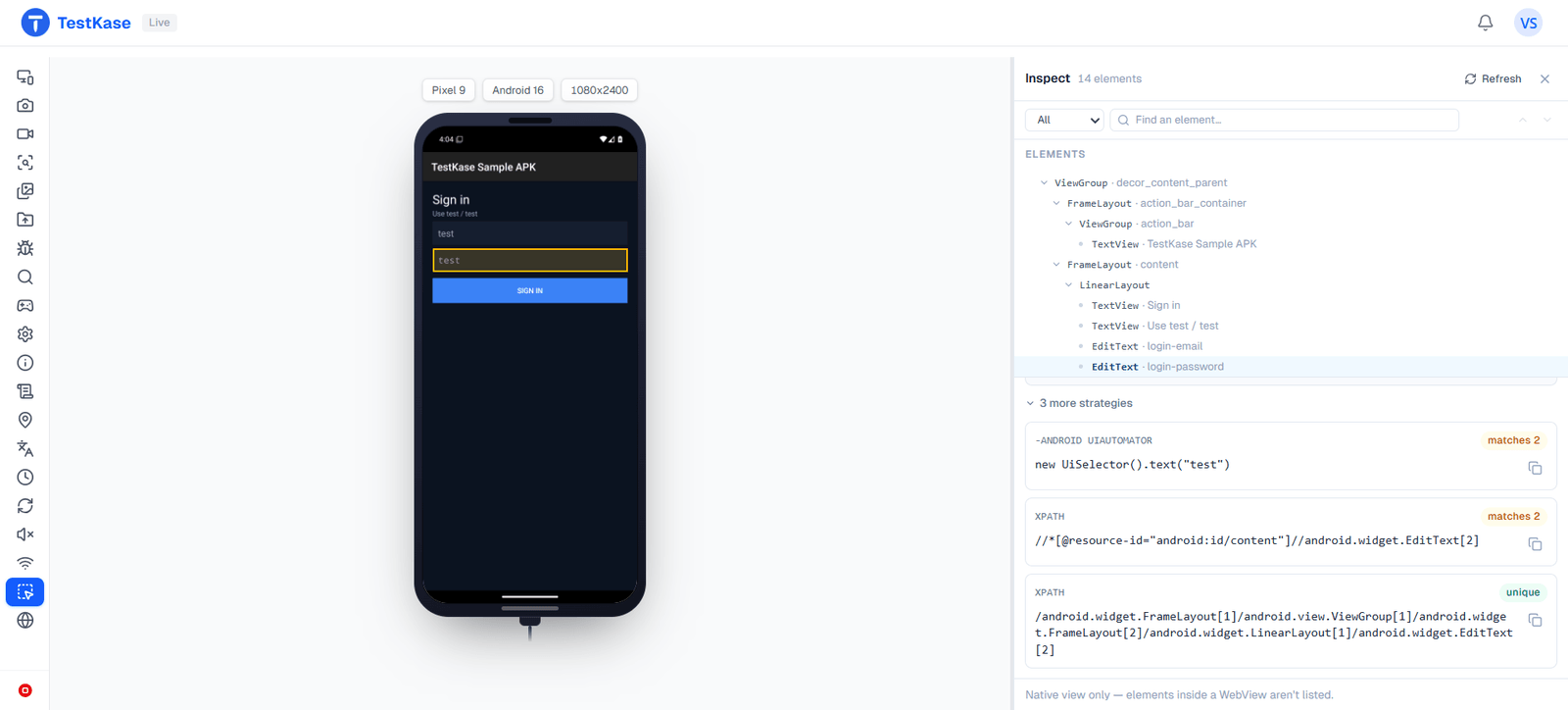
What the inspector gives you
Freeze and click
Turn on Inspect and the screen holds still. Click any element and the tree opens at that spot.
Attributes that matter
Resource id, class, accessibility label, text and bounds — the values your test needs, read from the real device, not a design file.
A copyable locator
A locator you can paste straight into an Appium test, taken from the live app so it matches the current build.
How many elements it matches
We show how many elements each locator matches. One that matches three is a flaky test you would chase next month.
Aligned with the screenshot
The tree and the screenshot are taken at the same moment and lined up, so the highlight lands exactly where you clicked.
In the session you already have
No extra inspector app and no driver to start — just a button on the session rail.
Where it works
Android apps
Real phones, tablets and emulators — tested end to end on real hardware.
iOS apps
It is built the same way, but not yet tested on a real iPhone — ask us where it stands before you commit.
Selected
- id
- login_submit
- class
- btn-primary
- text
- Sign in
- bounds
- 32,540 · 328,96
- accessibility
- Sign in button
Locator
//button[@id='login_submit'] CopyThe inspector reads native views. For a page in a browser or a WebView, use browser DevTools on a desktop session instead.
Frequently asked questions
The element tree of whatever is on the device screen, with a screenshot taken at the same moment. Click an element to see its details — id, class, label, text, bounds — plus a locator you can copy into an Appium test.
Because a bad locator does not fail when you write it. It works on the build in front of you, then picks the wrong element later, when a list grows or the screen reorders — the top cause of flaky mobile tests. Showing how many elements it matches turns that hidden bug into an obvious one. Appium Inspector does not tell you.
On real Android phones, tablets and emulators — it is tested end to end on real hardware — freeze the screen, click any element, and read its id, class, label, text and bounds, plus a copyable Appium locator tagged with how many elements it matches.
iOS is built the same way as Android, but we have not finished testing it on a real iPhone, so we do not list it as proven. Android is verified on real hardware. If iOS inspection matters to your decision, ask us where it stands before you commit.
No. It reads native app elements, so mobile web pages and the contents of an app's WebView are out of scope. For web pages, open a desktop session and use browser DevTools, which connects to Chrome and Edge with elements, console and network.
No. It is a button on the session rail — no separate inspector app, no driver to start, nothing installed on your machine. The locators it gives you are for your Appium tests, but you do not need Appium running to read them.
The screen freezes while you inspect, and that is the point — you read a still screen instead of chasing a moving one. Each inspection is one snapshot, not a live feed, because reading the tree over and over on iOS competes with the video for the same resource.
No — it only reads, it does not change anything. You can view details and copy locators, but you cannot change the running app's element tree from here.
Freeze the screen, click the element, and copy the locator the inspector generates from the live app — then read the match count it shows, so you know the locator is unique before it reaches your suite. Because it is taken from the real device rather than a design file, it matches the current build. Appium Inspector, which most similar tools are built on, never tells you whether a locator is unique.
Write locators against the device, not the design
Open an app session, freeze the screen, and copy a locator that you already know is unique.