The same page looks different in every browser
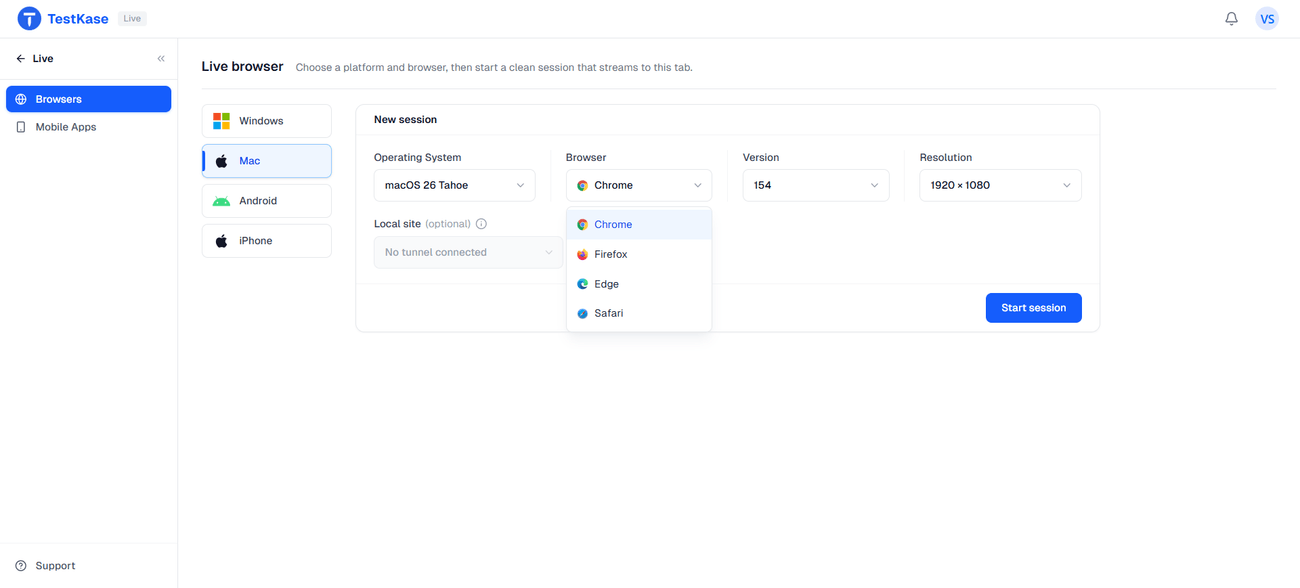
Open Chrome, Edge, Firefox or Safari on a real macOS or Windows machine, streamed to your tab. Switch browser, version or platform mid-session without losing your place.
No VM to maintain · free device-minutes to try it
Chrome, Edge, Firefox, Safari
Real macOS & Windows
Switch browser mid-session
DevTools on Chrome & Edge
“Works in Chrome” is one browser, one version, one machine
The same page can look different in each browser. Even the same Chrome looks different on macOS and Windows. A customer using a browser you never opened finds the bug first. You need to see it on the machine where it broke.
What actually differs between browsers
The engine — the smaller half
- Newer CSS and JavaScript
- Chromium, Gecko and WebKit still handle the newest features and storage rules differently.
- Autoplay and media
- Which video and audio formats play depends on the engine.
- Storage limits
- Safari is strictest with cookies and local storage, so users get logged out even when your tests don't.
The platform — the bigger half
- Fonts and scaling
- The OS measures and scales text, so lines wrap and cut off differently.
- Scrollbars and native controls
- Drawn by the OS — the same Chrome looks different on macOS and Windows.
- Defaults and policies
- Edge blocks trackers Chrome does not, and a managed work desktop can change these settings for everyone.
One session, every browser
Reach the broken step once — sign in, click through, reproduce it. Then reopen the same session as another browser, version or operating system in one click. You don't redo the slow part four times.
What you get in every session
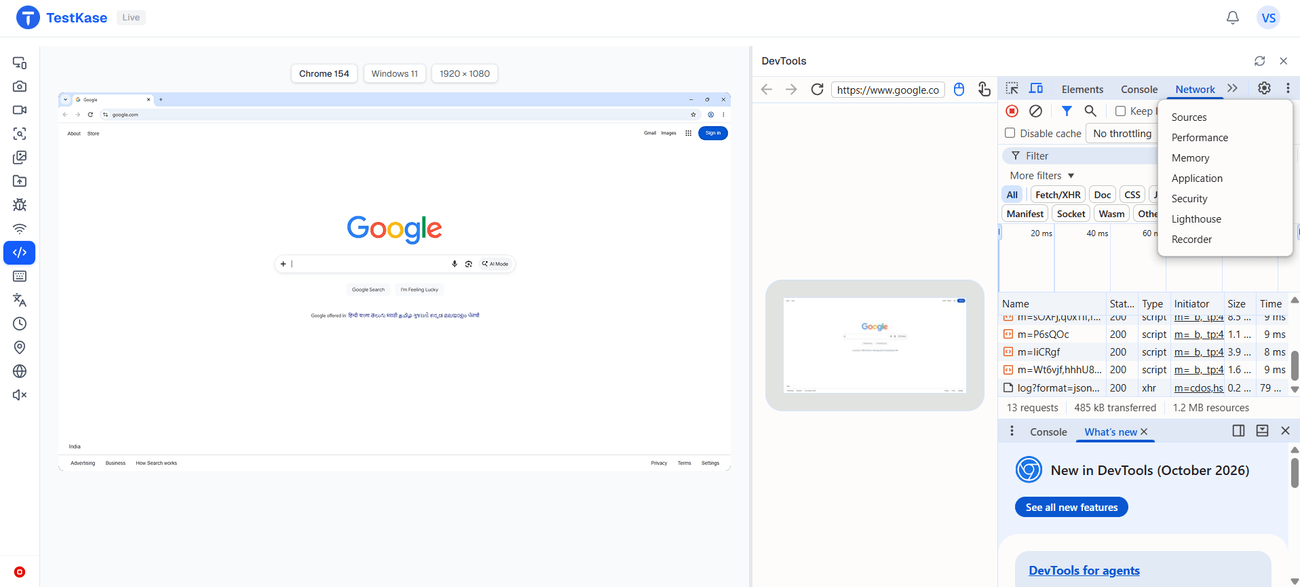
Every desktop session opens with the same control rail down the side — one click each, without leaving the tab.
DevTools on Chrome & Edge
Elements, console, network and sources, built into the session.
Slow the network
Switch to a slow connection or go offline, then watch loading, retries and errors.
Route through another country
Send traffic out through another country, so location-locked content works in any browser.
Set location, language, timezone
Set at the OS level, so the page loads like it would for that region.
Reach your own machine
Local Testing opens a site on your own machine or behind your firewall in the session — no public URL needed.
Capture and file it
Take a screenshot, record video, compare visuals, and file a bug with the evidence attached.
Frequently asked questions
A live session is a real browser you control by hand, in real time, to explore or reproduce a problem. Automated testing runs tests you already wrote and reports pass or fail. They answer different questions: automation catches the bugs you expected, and a live session shows what is really happening when a customer says something looks wrong. Most teams need both, and here they run on the same machines.
Yes. Switch Browser reopens the session as a different browser, version, operating system or screen size in the same tab, so you don't redo the slow part — signing in and reaching the broken step — for each browser. Anything kept only in memory is lost, because the browser really does restart.
Chrome, Edge, Firefox and Safari on real macOS and Windows machines, in current and older versions. Safari runs on macOS only, because Apple stopped making it for Windows in 2012. The browsers page lists every version, and that list is built from the live fleet, not typed out here.
No. The browser runs on our machine and streams to your tab. The one optional add-on is Local Testing: it opens a secure link so the session can reach a site on your own machine or behind your firewall. It runs a small program on your side and needs no public URL.
Yes. We keep older builds of each browser, so a report like 'it broke two versions ago' is something you can check instead of argue about. Pick the version when you start a session, or switch to it mid-session without losing your place.
On Chrome and Edge, yes — DevTools connect to the remote browser with elements, console, network and sources. On Firefox, its own tools open inside the session. On Safari, no: the automation it supports gives no console or network data, on any platform and with any vendor.
Audio works on Windows only — macOS browser sessions have none. Safari can't set a fake location (language and timezone still work), and older Firefox hides location, language and timezone until you pick a current build. We run current macOS and Windows 10 and 11, not a decade of old releases.
Open the page in a live session on one browser, reproduce what you need, then use Switch Browser to reopen the same session as Chrome, Edge, Firefox or Safari — on real macOS or Windows — without signing in and clicking through again. It runs in your tab with no VM to maintain, so you check every browser from one place.
Reproduce it on the browser that broke
Open the browser and version from the bug report, click through the steps, and capture what you find — without owning the machine.